
What a purchase costs and what the shop sold
Basketly reads spend and results from Meta, Google Ads, Microsoft Ads, TikTok, Pinterest and ChatGPT Ads and puts them next to the orders your shop sees. You judge each channel on its own campaigns, and all of them together against the shop. Every number has its source, and nothing gets mixed.
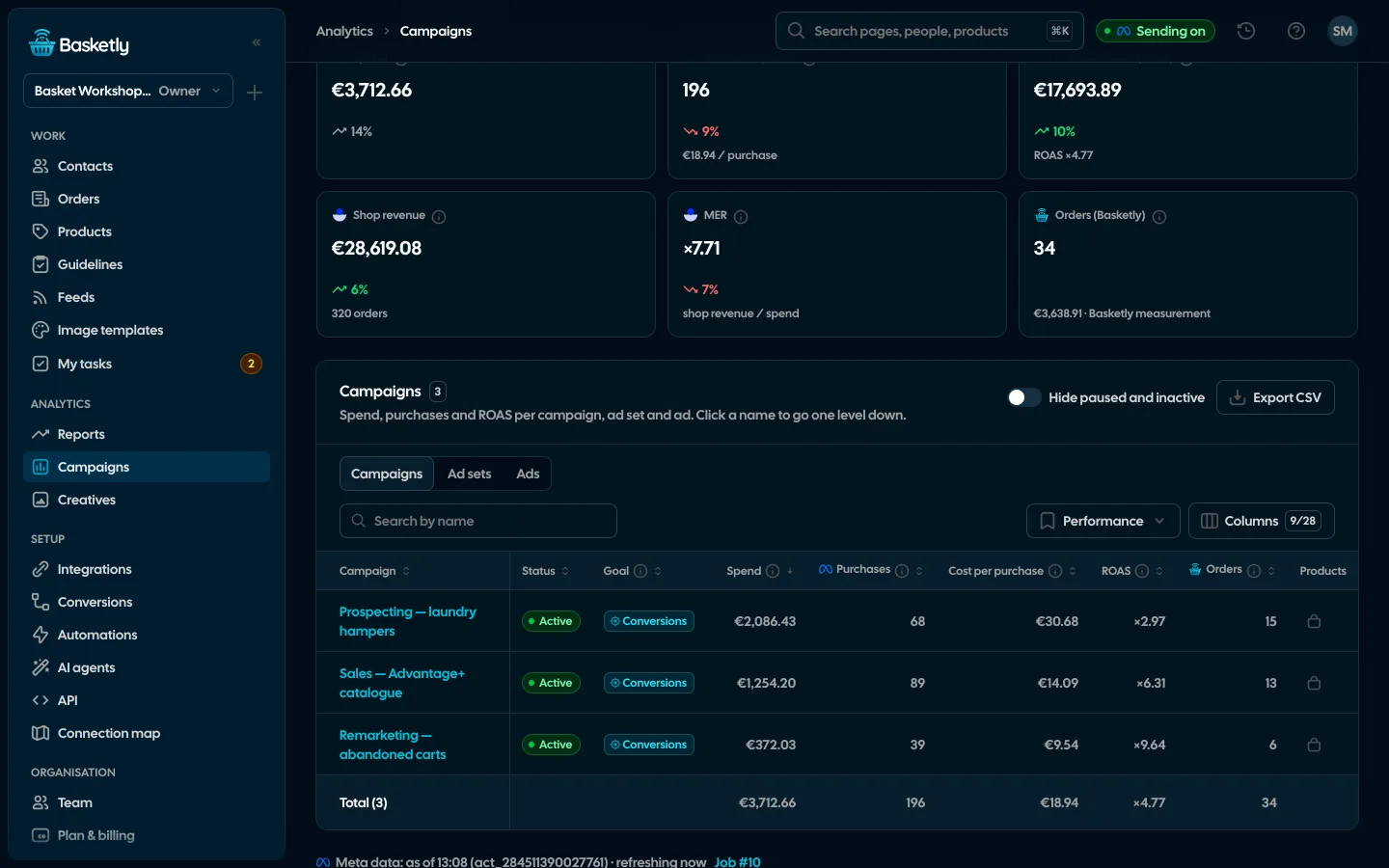
Screenshots from a demo organisation. People and numbers are fictional.
Channel switcher
Tabs with the platform’s logo: All channels first, then Meta and every platform with spend in the period or a connection. All channels gives total spend, blended MER, cost per order, the order source bar and the sum of platform claims, with the Channels table below.
- Meta: the full report below: campaigns, ad sets and ads, video, ad set goals, products in catalogue ads.
- Google Ads and Microsoft Ads: campaigns with their type (Search, Shopping, Performance Max…), ad groups and ads, “Show products” with the platform’s per-product conversions.
- TikTok, Pinterest and ChatGPT Ads: campaign → ad group → ad once “Read campaign results” is on in Integrations. Until then the tab shows Basketly orders and a button to switch reading on.
- Attribution window on the channel: read from the platform and printed in days, with Basketly’s last-click orders next to it, matched by campaign id or utm_campaign.
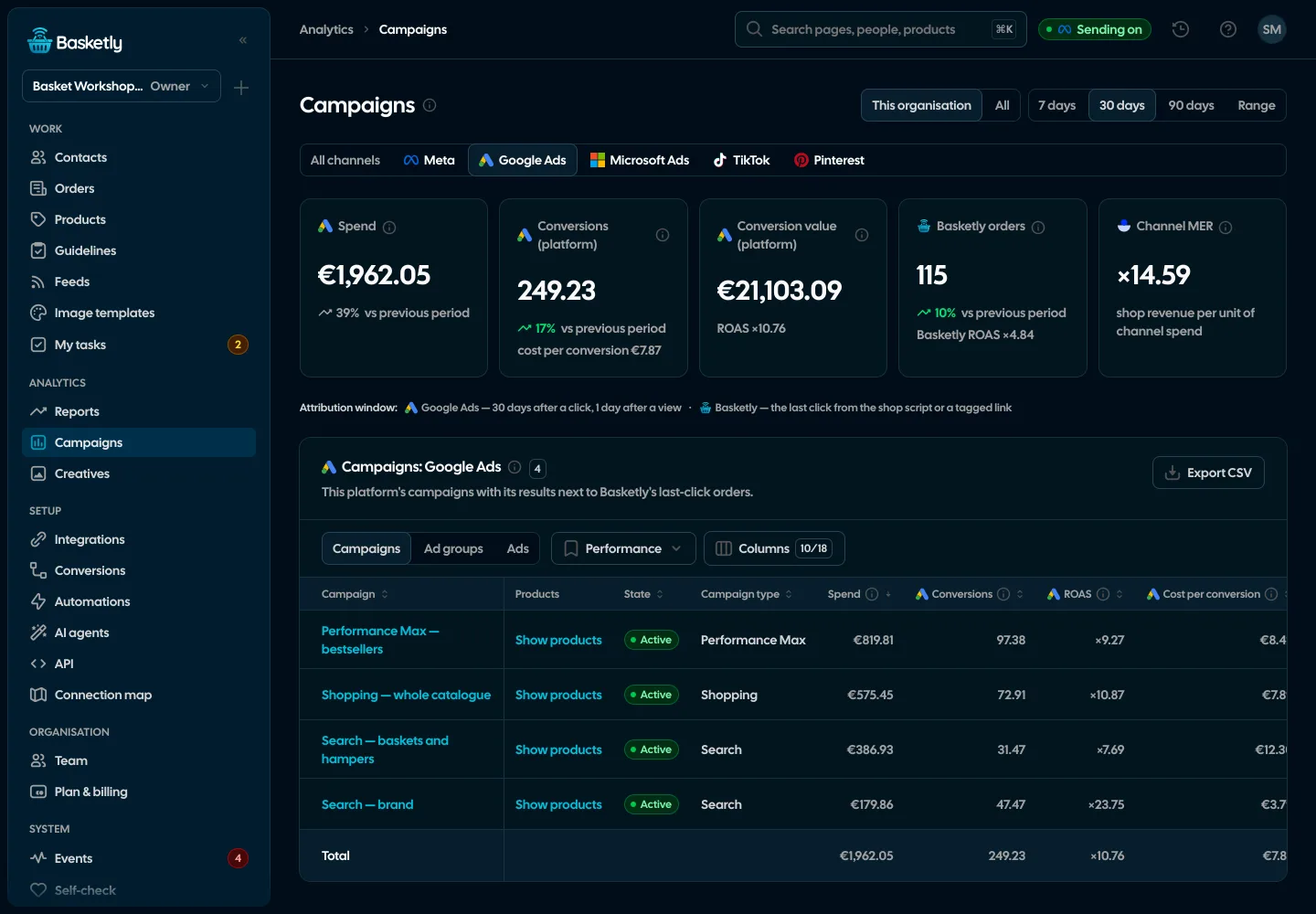
Sales tiles on the Meta tab
When Meta reports purchases or the shop has orders in the period, sales tiles sit at the top, each against the previous period of the same length. Next to them, Basketly orders from Meta campaigns, labelled “our reading”.
Purchases (Meta)
MetaWith cost per purchase, as Meta reports them.
Purchase value (Meta)
MetaWith ROAS: value divided by spend.
Shop revenue
ShopBought, not cancelled orders of the period, same currency, with the order count.
MER
ShopShop revenue divided by Meta spend, for the whole account. MER over every channel is on the All channels tab.
How we count
A few rules behind the report’s columns.
| Rule | What it means |
|---|---|
| One purchase type per row | Purchases from all surfaces, else the pixel/server purchase, else plain purchase. Never a sum |
| A campaign filter hides shop figures | One campaign’s share of the shop’s sales is unknown |
| A cost only when there is something to divide by | Without purchases the cost is “—”, not 0 |
| Currencies apart | One tile set per ad-account currency, never converted |
| Platform conversions never added up | Each platform counts within its own attribution window, so the all-channel totals row leaves them empty |
From campaign to a single ad
A Campaigns, Ad sets and Ads table with drill-down, sorting, a totals row and ad thumbnails. Meta status and the optimisation goal have their own columns. CSV export of the visible columns with semicolons and a decimal comma.
- Columns to pick in sections: Meta results, costs (CPC, CPM), reach and engagement (impressions, clicks, CTR), video (hook rate, hold rate, views) and Basketly orders
- Drag columns into order and save the layout as a view; ready-made views: Performance, Shop sales, Engagement, Video
- Custom columns with a formula, e.g. Basketly revenue divided by spend, as a number, amount, percent or multiplier
- “Hide paused and inactive” hides rows that are not running
- For many clients: the “All” overview with each organisation’s totals
Products in catalogue ads
“Show products” on a campaign or ad opens the catalogue products it showed, most shown first: impressions, clicks, CTR, CPC and spend from Meta’s per-product breakdown, plus each product’s sales in the shop.
See product statisticsConversions and ROAS come from the platforms’ reports, each within its own attribution window; shop revenue and MER from your orders. MER does not attribute sales to ads. None of these numbers proves that a campaign optimises on purchases sent from the server.
Not for Meta: we pull spend for the ad accounts your data receivers already use, 90 days back on the first sync, then every hour and at night. Google Ads and Microsoft Ads are connected by signing in under Integrations, and TikTok, Pinterest and ChatGPT Ads by the “Read campaign results” switch on their connection; then we read 90 days and every 6 hours after that.
Meta counts purchases it attributes to its ads, within its attribution window. The shop counts every order, wherever it came from. That is why we show both separately, each with its source.
The report does not; it only reads data from the platforms. A new ad is created in Meta only when an owner or admin creates it in Creatives (Clusters): always paused, with [basketly.io] at the start of its name.
Related features
- Sales reportOne sentence on how the shop is doing, the six key figures and conclusions with a next step — and tabs below, each answering one question. Every number with its truth level: the shop, a platform or the last click.See details
- All channelsMeta, Google Ads, Microsoft Ads, TikTok, Pinterest and ChatGPT Ads next to the shop’s sales: total spend, blended MER, each channel on its own campaigns and three truth levels that never mix.See details
- Creative analyticsCost per purchase and ROAS from Meta’s report, hook rate and a fatigue signal for every creative.See details
- Orders and buyersEvery shop order with its lines and state, revenue, average basket, new and returning buyers, and 24 months of history.See details
- Product feedsYour shop’s feed fixed automatically and by your rules, every product diagnosed against Google Merchant Center and Meta catalogue requirements, served at its own address.See details
- ConversionsShop purchases sent server-side to Meta and seven more platforms, and a day-by-day balance: how many orders, how many purchases accepted and where something got lost.See details
Get started in under 5 minutes
Connect your shop and Meta and see how many purchases really arrive.
- Free up to 100 orders a month
- No developer needed
- Purchase balance and self-check