

What the shop sold and what the ads cost, sources never mixed
Shop numbers and ad platform numbers rarely agree, because they count different things. Basketly starts with one sentence about the period, shows the numbers side by side, each marked with where it comes from, and compares them with the same period before.
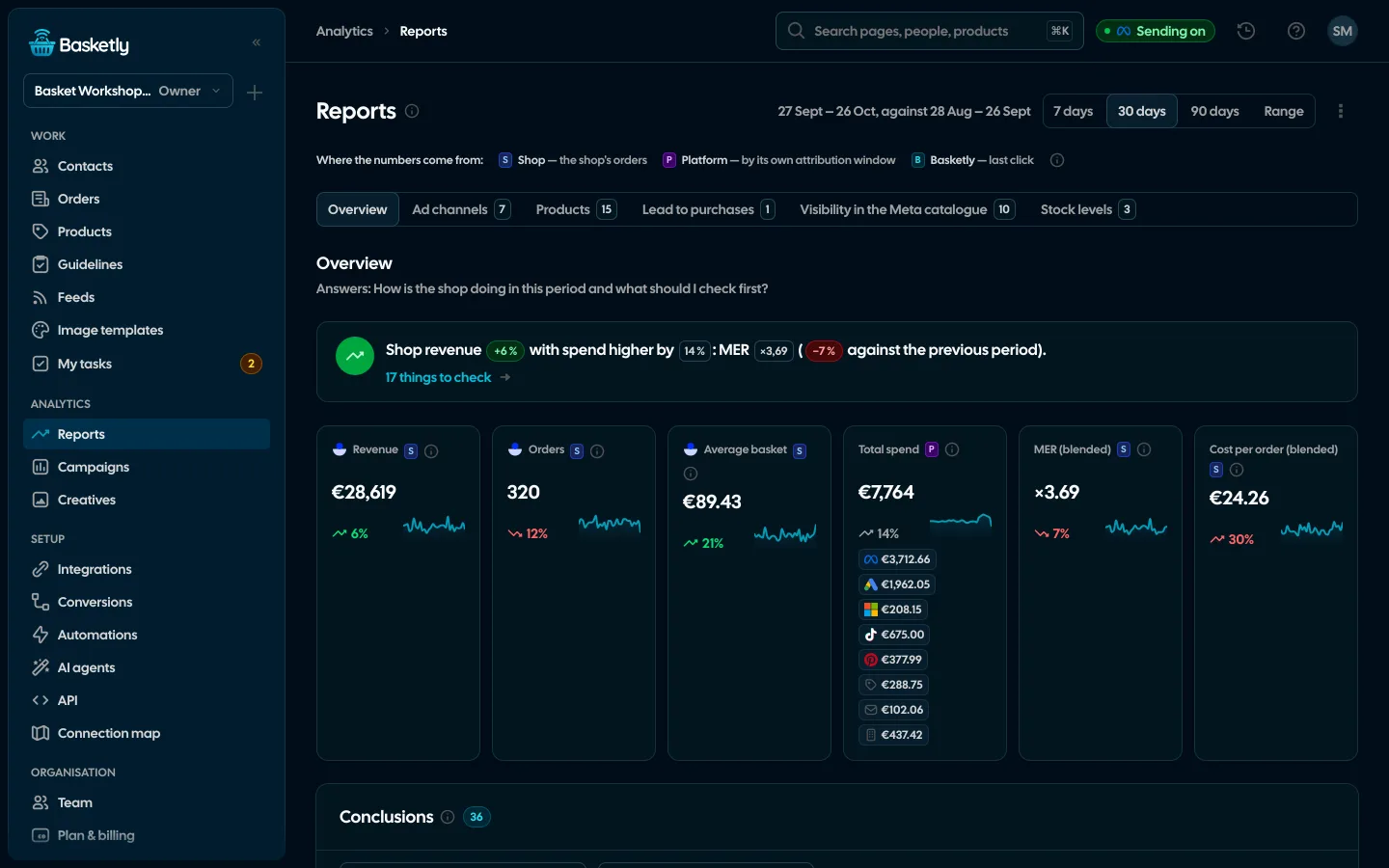
Screenshots from a demo organisation. People and numbers are fictional.
Overview: one sentence, six figures, conclusions
The Overview tab opens first. On top, a sentence about the period, e.g. “Shop revenue +40% with spend higher by 20%: MER ×7 (+17% against the previous period)”, with the figures in coloured badges and a link to the things to check. Under it six figures: revenue, orders, average order, total spend, MER and cost per order. Below, the conclusions: the five most important, each with its whole title, a “What to do” sentence and a button that takes you where you do it.
- Tabs named after questions: Ad channels, Products (Trends and In channels), Lead to purchases, Visibility in the Meta catalogue, Stock levels
- The other tabs start with their own content, their conclusions folded into one bar
- A legend of three truth levels: Shop, Platform (by its own attribution window), Basketly (last click)
Every number with its source
A period of 7, 30 or 90 days or your own date range, and the same period before it — both ranges are named next to the switch. Revenue is counted in the shop’s main currency, the one most orders use; orders in another currency are counted apart.
| Number | Source |
|---|---|
| Revenue, paid orders, average order | The shop: bought, not cancelled orders of the period |
| New and returning buyers | The shop: new means first order in the period |
| Total spend and cost per order | The reports of every ad channel, with each channel’s amount next to its logo |
| MER (total) | Shop revenue divided by the spend of every ad channel plus costs outside ad platforms typed in by hand (comparison sites, e-mail tool, agency), no attribution |
| Spend in other currencies | Apart, or — when switched on — converted by the NBP average rate of the spend day |
| Orders by source | Basketly (last click): one source per order, shares add up to 100% |
| ROAS, conversions and their value | As each platform reports them, on the channel’s row of the Channels table |
| Purchases accepted for sending | Basketly: share of paid orders |
Day by day and best sellers
The Ad channels tab has two charts side by side, each on its own axis: shop revenue day by day and spend day by day stacked per channel, with MER week by week below. The top 10 products by revenue come from the lines of paid orders, every source.
- Revenue and spend each on its own chart, MER week by week
- Top 10 products by revenue
- Every number compared with the previous period of the same length
A report by e-mail every Monday
An owner or admin switches on the weekly report. On Monday morning the owner and admins get last week’s summary, Monday to Sunday, in their own language — and, when the shop reports stock, the products that run out before a restock.
Revenue with the change
Week on week.
Orders and buyers
With the average order.
Channel spend and blended MER
Each channel’s spend with its change and its last-click orders.
Accepted purchases
And the week’s 3 best products.
Stock levels: what runs out before a restock
The Stock levels tab works out, for every product with stock from the shop, the sales pace of the last 14 days (28 with low sales; below 3 units the report stays silent), days of cover, the stockout date, the reorder point and a suggested quantity. Levels are counted against the lead time you set for the organisation (7 days by default), with demand from catalogue ads and carts week over week beside them.
Critical
Cover of at most the lead time: stock ordered today arrives too late.
Rising demand
Clicks or carts +30% week over week move the level one step up.
Revenue at risk
Pace × lead time × price for critical and sold-out products.
Overstock in ads
180 days of cover or more while ads keep showing it.
Visibility in the Meta catalogue: which products Meta skips
The Visibility in the Meta catalogue tab shows products that can be in catalogue ads (in a Basketly feed Meta reads, available and without catalogue errors) that Meta did not show once in the period. Each product carries the reason, its shop demand and its stock value. The second part puts out-of-stock days next to impressions: what went on sold-out products and which products came back in stock without delivery.
A reason per product
Not in a feed, excluded by a rule, out of stock, catalogue error, just added, or Meta does not pick it.
Selling without ads
Products with shop orders and zero impressions.
Frozen stock value
Stock × price of products the ads do not show.
Sold out but shown
Spend on out-of-stock days and the catalogue lag.
Stock as read and a “now” estimate
Stock is the shop’s number from the last product read, with the read time. Beside it Basketly gives a labelled estimate: stock at the read minus units in orders placed since, so the list moves during the day. The stockout date is a linear forecast, and ad demand is co-movement, not attribution.
- A table with views: need attention, rising demand, in ads, overstock
- Level, brand, category and source filters, your own columns and CSV export
- Conclusions: an ad bestseller with low stock, sold out while demand rises
Orders from tagged feeds
When a feed has link tagging on, Basketly shows under Ad channels the orders from visits through a product link: per feed and per landing product, how many bought a different product than the one they landed on, and orders per 100 clicks. It is our reading from the shop script, not Meta’s purchases.
Delivery concentration: is Meta advertising one product
In the Visibility in the Meta catalogue tab you pick a scope: all catalogue ads, an ad account, a campaign, an ad set or an ad. The ranking lists products from the most shown, with their share of impressions, cumulative share, clicks, spend, shop sales and stock. The metrics start at 1,000 impressions and 10 products; below that it says “too little data”.
| Metric | What it tells you |
|---|---|
| Share of no. 1, top five and top ten | How much of the impressions the leaders took |
| Gini coefficient | From 0 (even) to 1 (everything on one product), also for clicks and spend |
| Effectively advertised products | How many equally shown products the spread amounts to (1/HHI) |
| Leader week by week | Who was no. 1 and how often it changed |
| After the leader sold out | 7 days before and after: impressions, CTR, spend, Meta purchases for the scope, who took over and after how many days |
Ad channels and products in channels
The Ad channels tab answers which channels earn and which only spend: the Channels table has one row per channel and seven columns by default — spend, orders, revenue and ROAS by the last click (Basketly) and conversions and ROAS as the platform reports them — never mixed. The In channels view of the Products tab puts every product against every channel that shows it.
See every channel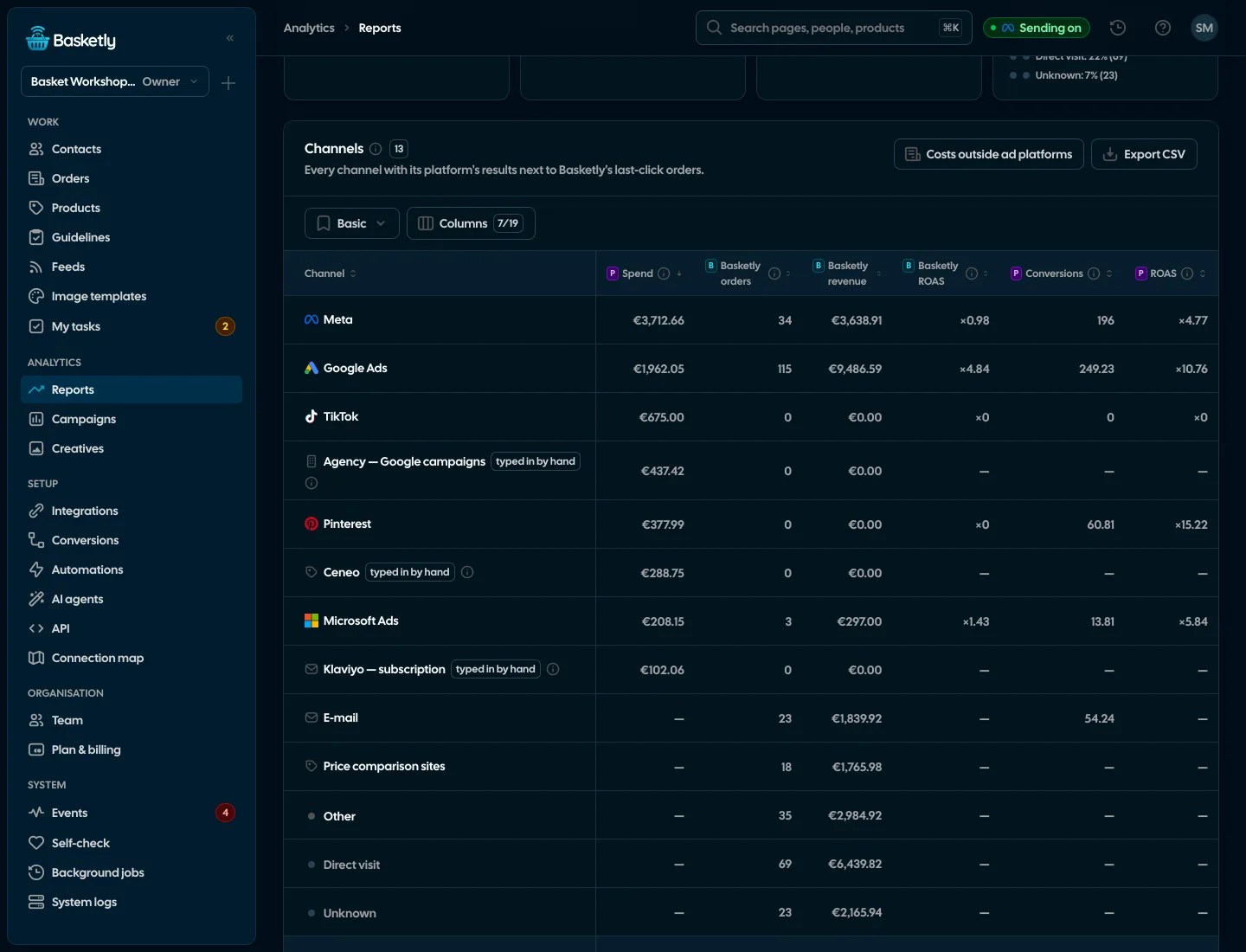
More detail in Campaigns
The report covers the whole account. Each platform’s campaigns, and for Meta also ad sets, ads and products, are in the campaign report.
See campaign reportingMER is shop revenue divided by all marketing spend: what ad platforms report plus costs of comparison sites, the e-mail tool or an agency typed in by hand. It does not attribute sales to ads, while ROAS and conversions come from the platforms’ reports. We show these separately and never mix them.
MER is the shop’s whole revenue divided by all marketing spend (ad channels and costs typed in by hand), wherever the buyer came from. ROAS is the value of purchases Meta attributes to its ads, divided by spend. The first describes the whole shop, the second what Meta reports.
No. Zero impressions means Meta reported no impression in the per-product breakdown of the connected ad accounts. Basketly shows the reasons it can see (feed, rules, stock, catalogue diagnosis); a rejection by Meta is not visible without a catalogue permission.
Anyone who can view the Events area. An owner or admin switches on the e-mail report, and it goes to the owner and admins.
It divides stock (from the shop’s last read, or our estimate after subtracting orders placed since) by the sales pace of the last 14 days. It is a linear forecast: it does not see future promotions or deliveries, so every product shows when its stock was read, and you set the lead time yourself.
Not by default. Revenue is counted in the shop’s main currency, and orders in another currency are shown apart. Channel spend is taken in the same currency, and spend in another currency is named in the (i). An owner or admin can switch on converting spend by the NBP average rate of the spend day.
Related features
- All channelsMeta, Google Ads, Microsoft Ads, TikTok, Pinterest and ChatGPT Ads next to the shop’s sales: total spend, blended MER, each channel on its own campaigns and three truth levels that never mix.See details
- Campaign reportingCampaigns of Meta, Google Ads, Microsoft Ads, TikTok, Pinterest and ChatGPT Ads, each platform on its own figures and attribution window, next to the shop’s orders and revenue, with products in catalogue ads.See details
- Creative analyticsCost per purchase and ROAS from Meta’s report, hook rate and a fatigue signal for every creative.See details
- Orders and buyersEvery shop order with its lines and state, revenue, average basket, new and returning buyers, and 24 months of history.See details
- Product feedsYour shop’s feed fixed automatically and by your rules, every product diagnosed against Google Merchant Center and Meta catalogue requirements, served at its own address.See details
- ConversionsShop purchases sent server-side to Meta and seven more platforms, and a day-by-day balance: how many orders, how many purchases accepted and where something got lost.See details


Get started in under 5 minutes
Connect your shop and Meta and see how many purchases really arrive.
- Free up to 100 orders a month
- No developer needed
- Purchase balance and self-check