

Product check: see the errors before Google and Meta refuse a product
Basketly checks every product from your shop and feeds against the requirements of Google Merchant Center and the Meta catalogue. You get 44 checks, a score from 0 to 100 and a hint on what to do for every problem. Some fixes happen on their own in the feed.
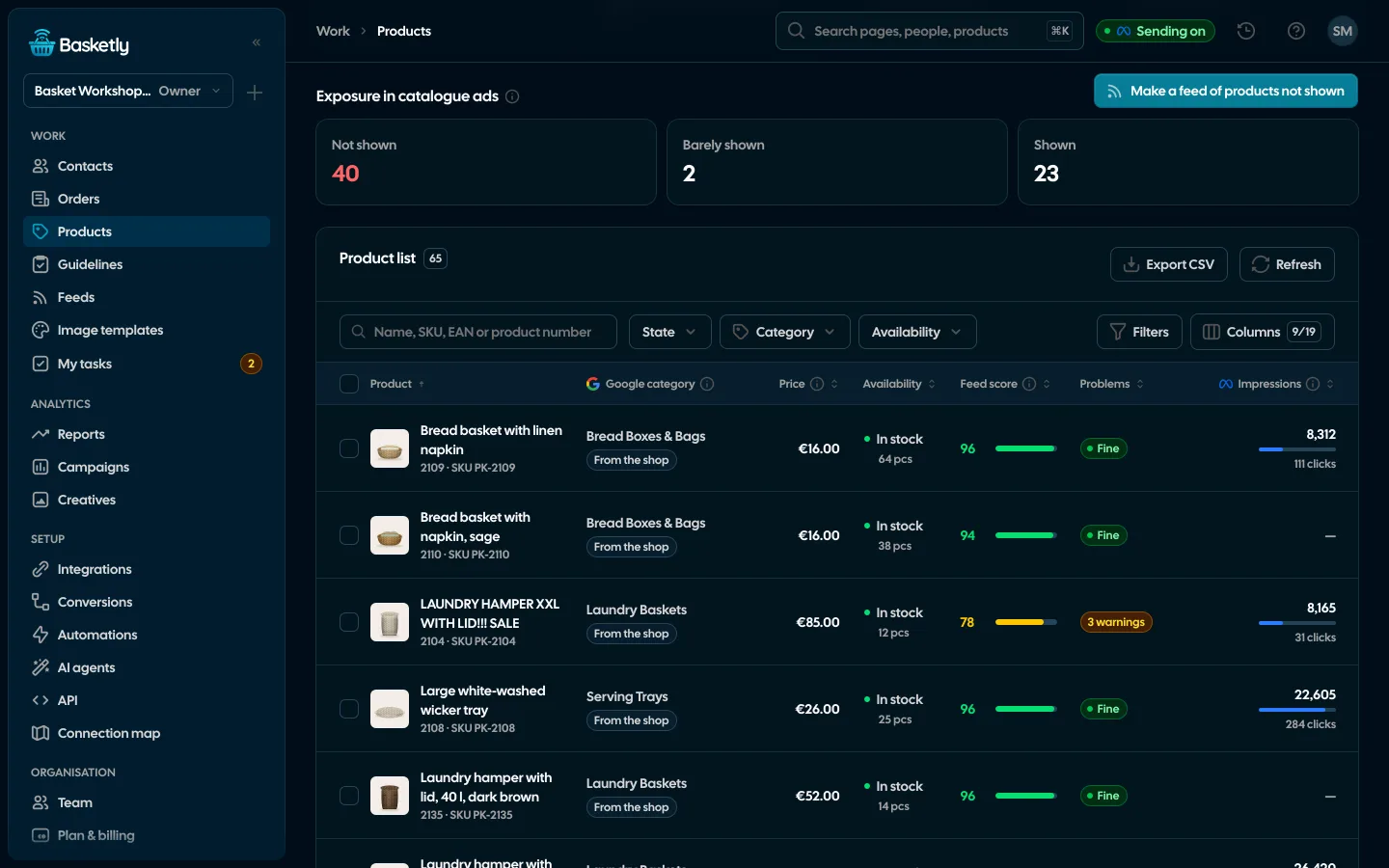
Screenshots from a demo organisation. People and numbers are fictional.
Sound familiar?
This is how shop owners and feed specialists talk about products in Merchant Center and the Meta catalogue. Basketly will not invent missing data for you, but it shows which product has which problem before the impressions drop.
“A product was refused and I found out three days later”
Impressions fall and the cause turns up only after you open Merchant Center. Here errors and warnings sit on the list, with the number of refused and weakened products.
“Merchant Center does not say what exactly is wrong”
For every problem you see the value that causes it, the side it concerns (Google, Meta or both) and a note on what to do.
“I fix one product at a time, among thousands”
You can filter problems by kind. When a fix is repeatable the feed does it for you, and the “Basketly fixes” mark tells you which ones.
“I do not know where a requirement comes from”
A problem links to the vendor page that describes the rule, with the date it was last checked.
What leaves your to-do list
Going through products one by one to find what is wrong is work you can leave to the panel.
- Opening products by hand in Merchant Center and the Meta catalogue to find why one was refused
- A spreadsheet that checks titles, descriptions, photos and prices and has to be redone after every shop change
- Looking up the requirements of Google, Meta, TikTok and Pinterest in four different places
- Guessing whether missing impressions come from a product error or something else
What you will see in the panel
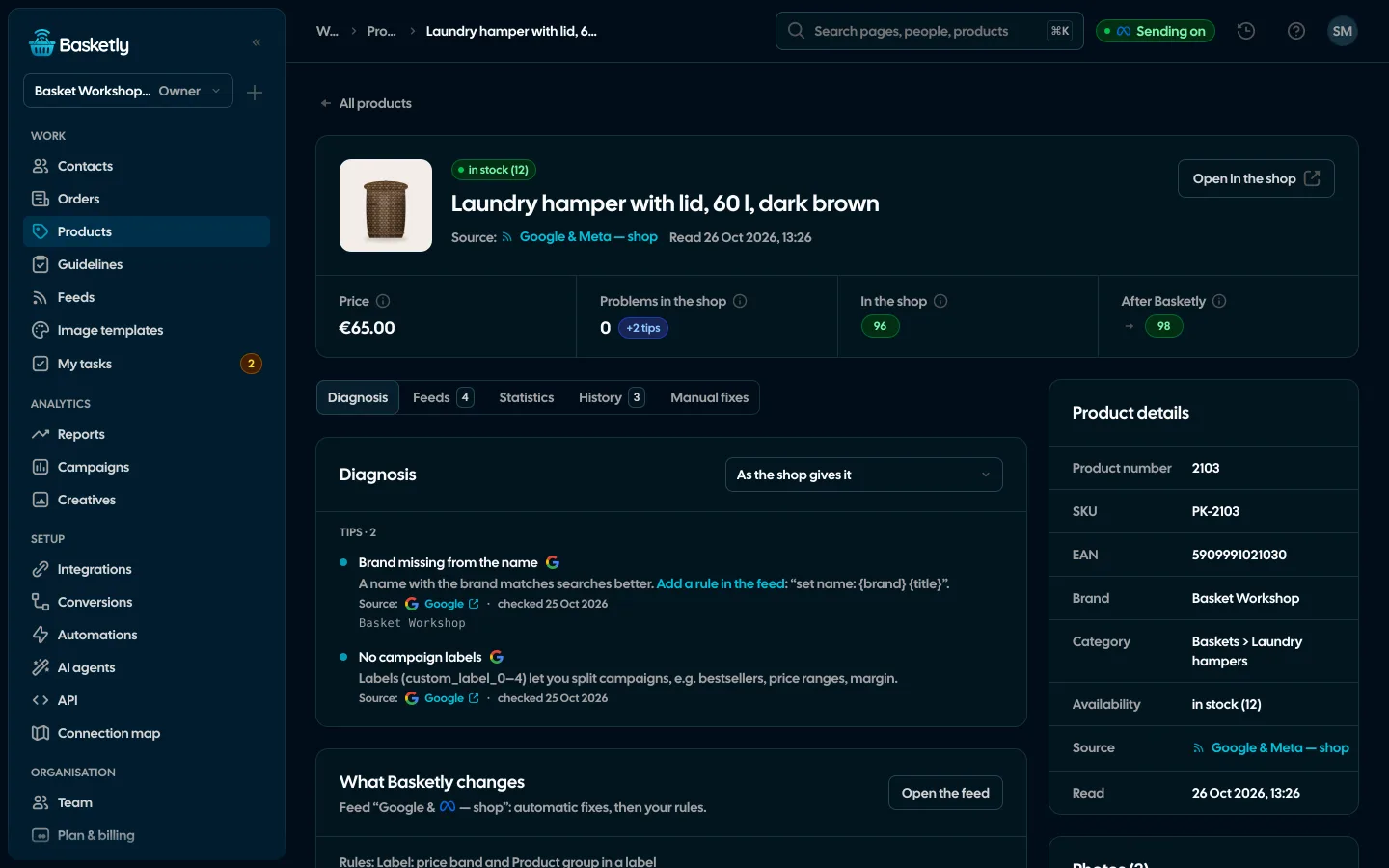
Products is a list where you see at once what needs attention. Every product also has its own page.
- Tiles: products, refused, weakened and the average score. The refused and weakened tiles filter the list
- A list with a 0–100 score column, the number of errors and warnings, and search by name, SKU, EAN or id
- A product page with the tabs Diagnosis, Feeds, Statistics, History and Manual fixes
- The product’s score in the shop next to its score after Basketly fixes
- A manual fix of a value right on the product page
What we check
The checks cover the data that decides whether a product is accepted in Google Merchant Center and the Meta catalogue. Each has a weight: error, warning or tip.
Title
Missing, over 150 characters, all capitals, sales phrases (“sale”, “free”), emoji, too short, no brand.
Description
Missing, too long or too short, with HTML code, equal to the name, with sentences stuck together.
Photos and link
Missing or invalid address, no https, only one photo.
Price and availability
Missing, wrong format, no currency, a sale price not lower than the regular one, “in stock” at zero quantity, pre-order without a date.
Identifiers
Missing product id, a GTIN with a wrong check digit or length, a shop-internal code, no brand, GTIN or manufacturer number.
Categories and apparel
No Google category or shop category, apparel without colour, size, gender and age group, no custom labels.
The score and what to do with it
A product’s score is a number from 0 to 100, so you see at once where to start.
Feed errors, step by step| Weight | What it means | Taken off the score |
|---|---|---|
| Error | That side (Google or Meta) refuses the product | 20 points |
| Warning | The product is shown less or is at risk | 6 points |
| Tip | An opportunity to improve | 2 points |
| Info | For example out of stock; does not affect the score | 0 points |
Guidelines: where each requirement comes from
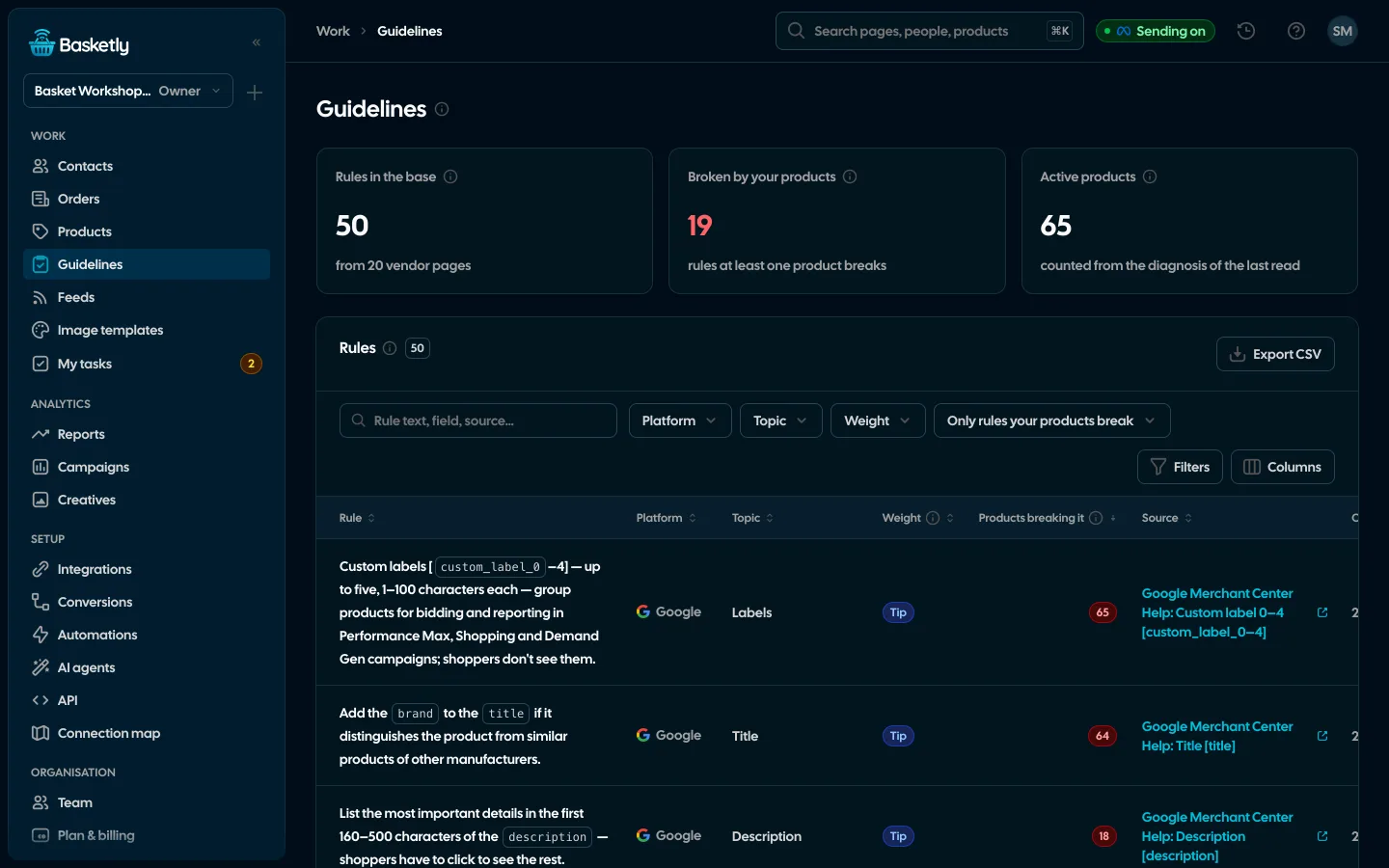
The Guidelines screen collects 50 rules of Google Merchant Center, the Meta catalogue, TikTok and Pinterest. For each you see the vendor page it comes from and the date it was last checked. The rules are exactly what the vendor states, with no numbers of our own.
- A table of rules with the platform logo, weight and a “Products breaking it” column; the number opens Products filtered by that problem
- Every week we check the vendor pages; when a page’s text changes, the rule is marked for a fresh read
- AI title suggestions: 1–3 proposals based on the rules of four platforms, checked by our own checks. Nothing is saved until you click “Apply”
How it works: from problem to fix
The diagnosis is saved with every read of the shop or feed, so the list is current without a separate scan.
See product feeds- 1
Read
Products from Shoper, IdoSell, BaseLinker, WooCommerce, Shopify and from feeds you download or upload.
- 2
Checks
44 checks per product, with a weight, a side and the offending value.
- 3
Fix
Automatic feed fixes, rules or a manual fix on the product page.
- 4
Feed
A corrected feed for Google, Meta and other channels, and the page shows the value before and after.
From the diagnosis to the ads
When a product passes the checks and ads still do not show it, look in the statistics. The “Exposure in catalogue ads” tiles show products not shown, barely shown and shown, and one button turns the products without exposure into a separate feed.
See product statistics- Product statistics: impressions, clicks and spend in Meta catalogue ads, page views and adds to cart from the shop script (with the shopper’s consent), sales from orders
- Meta gives no conversions per product, so we do not present ad statistics as a product’s sales from ads
What it does not do
Plainly, so you do not buy something Basketly does not give you.
Google Merchant Center on Basketly- It will not invent a missing GTIN. It shows products without a code and removes from the feed codes that Google would refuse
- It cannot lift a Merchant Center suspension (“Misrepresentation”): that is a trust judgement about the shop, not a file error
- It does not guarantee a product is accepted. The rules are requirements from vendor pages
- AI title suggestions work only when that feature is switched on on the server, and need the Connections edit right
The score and checks rest on requirements published by Google, Meta, TikTok and Pinterest and on a few tips of our own that have no vendor source and are marked as such. A high score does not guarantee a product is accepted or shown in ads.
It checks every product against the requirements of Google Merchant Center and the Meta catalogue. Basketly runs 44 checks, gives the product a score from 0 to 100 and shows what to fix for every problem.
An error means that side (Google or Meta) refuses the product. The “refused” tile collects them and filters the list. The final status is always in Merchant Center and the catalogue manager.
No. The check only reads product data. Fixes go into the feed you publish to Google and Meta, not into the shop.
Basketly shows products without a GTIN and says when a code is needed. It does not invent one. When a product has none, you can set it in the feed as a product without a code.
From vendor pages: Google Merchant Center, the Meta catalogue, TikTok and Pinterest. Each rule in Guidelines links to its page and the date it was last checked. A few checks are our own tips with no vendor source and are marked.
Products from Shoper, IdoSell, BaseLinker, WooCommerce and Shopify, and products from feeds you download or upload.
Related features
- Product feedsYour shop’s feed fixed automatically and by your rules, every product diagnosed against Google Merchant Center and Meta catalogue requirements, served at its own address.See details
- Image templatesImages for carousel and catalogue ads drawn for each product: 122 ready designs, an editor and import from Figma.See details
- Product statisticsImpressions, clicks and spend of every product in Meta catalogue ads, next to views, carts and sales in your shop.See details
- Orders and buyersEvery shop order with its lines and state, revenue, average basket, new and returning buyers, and where the order came from.See details
- Sales reportOne sentence on how the shop is doing, the six key figures and conclusions with a next step — and tabs below, each answering one question. Every number with its truth level: the shop, a platform or the last click.See details
- ConversionsShop purchases sent server-side to Meta and seven more platforms, and a day-by-day balance: how many orders, how many purchases accepted and where something got lost.See details


Get started in under 5 minutes
Connect your shop and Meta and see how many purchases really arrive.
- Free up to 100 orders a month
- No developer needed
- Purchase balance and self-check