
Shop customer segments and Meta audiences: new, returning, lapsed buyers and what to do with them
How to pick customers by their purchases, save a segment and send it to Meta as a custom audience that updates itself every night. With conditions and limits.
On this page
A customer segment is a group of people who share something in their purchases: they bought once, they buy regularly, or they stopped buying. In Basketly a segment is simply a saved set of filters of the Contacts list that you can send to Meta as an audience and update every night. Below: which segments are ready-made, how to build your own, what exactly goes to Meta and what this feature will not do.
Why does a shop need customer segments?
Segments let you talk differently to different customers. Someone who bought once a month ago needs a different message than a regular customer or a person who has not bought for half a year. A segment collects such people automatically from the shop's orders, so the list changes by itself as customers buy.
In practice shops use segments for three things:
- ads aimed at specific customers, for example a second-purchase offer for people who bought once,
- exclusions, for example not showing new-customer ads to people who already buy,
- team work, for example a list of lapsed customers to call, or tasks in an automation.
The data behind segments comes from the orders stored in the panel. How they get there is described in the article on orders and buyers.
Which segments are ready from the start?
The Segments tab on the Contacts page has five ready-made shop segments. Each shows its number of people and a "Show people" button that opens the Contacts list with those filters. The counts refresh by themselves, because a segment is a set of conditions, not a frozen list.
| Segment | Who belongs to it | Typical use |
|---|---|---|
| New buyers | Who belongs to itFirst purchase in the last 30 days | Typical useWelcome, nudge towards a second purchase |
| Bought once | Who belongs to itExactly one paid order | Typical useSecond-purchase offer |
| Returning | Who belongs to itTwo or more paid orders | Typical useNew arrivals, loyalty programme, exclusion from acquisition |
| Lapsed | Who belongs to itUsed to buy, but not for 90 days | Typical useReminder campaign |
| No purchases | Who belongs to itPeople in Contacts without a paid order | Typical useE.g. people added by hand or from a webhook who have not bought yet |
The count is worked out for the person looking. If your role is set to "only own", you see the number of your own people in the segment, not the whole organisation's.
How do you save your own segment?
Your own segment is made from the filters of the Contacts list. Set the filters, click "Save as segment" next to the list and give it a name. An organisation can have up to 50 saved segments. A segment keeps the filters without the name search, sort order and campaign filter, and the "my owner" filter cannot be part of it, because it depends on who is looking.
The most useful filters are in the Shop purchases section of the More filters window:
- Number of orders from–to, for example exactly two orders,
- Amount spent from–to, for example customers who spent a lot,
- Last purchase within the last 30, 90, 180 or 365 days,
- Bought, but not for 30, 60, 90, 180 or 365 days,
- First purchase within the last 30 or 90 days,
- Bought products: a searchable list of the products people already bought, with the number of buyers.
Filters combine with the others, for example tags or source. Several values of one filter mean "any of them", while different filters must all hold. When you change the filters, "Save the current filters in the segment" overwrites the saved segment.
How do you send a segment to Meta as an audience?
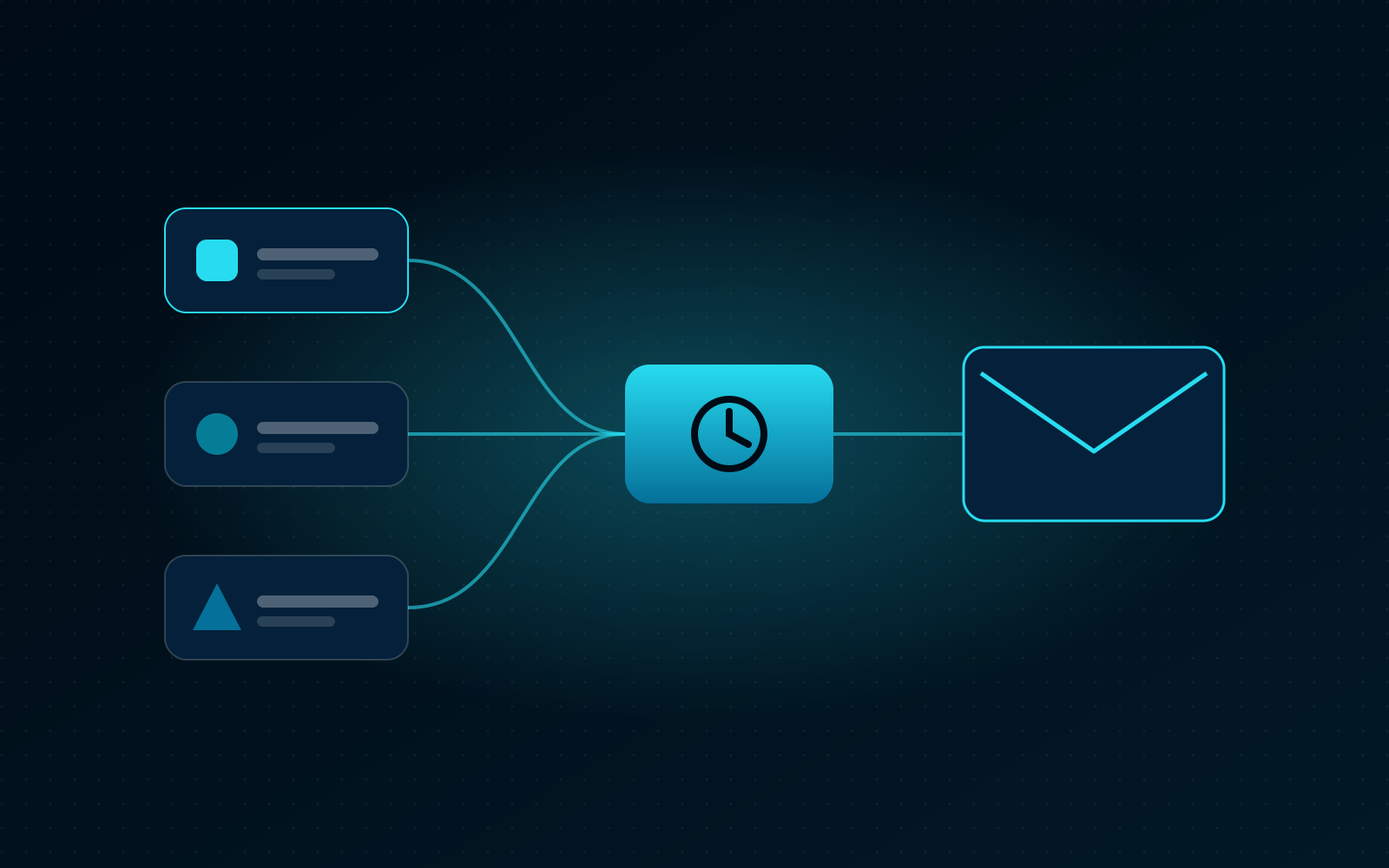
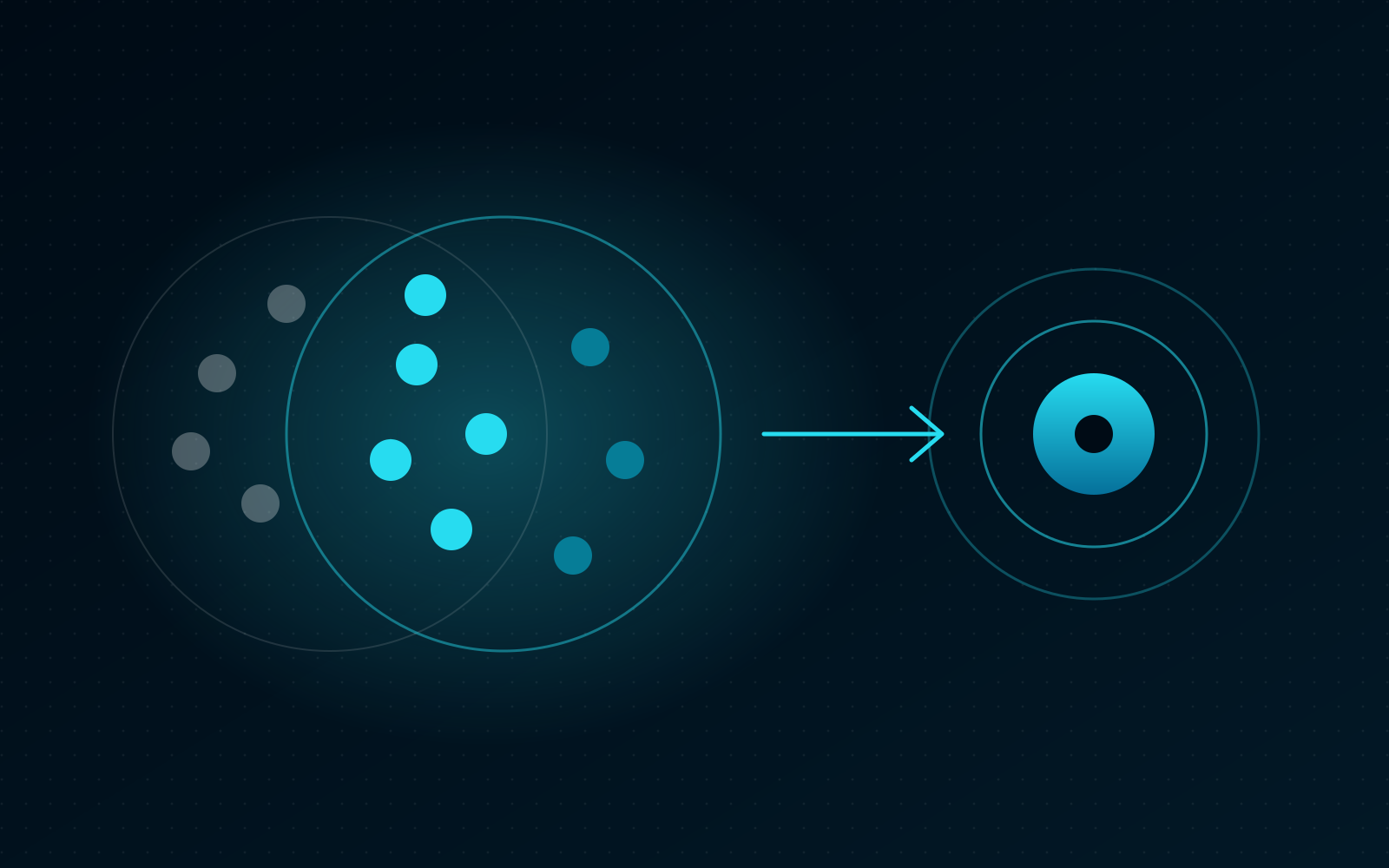
A custom audience is a list of people you can choose in Meta when setting up ads, to show the ads to them or to exclude them. Basketly creates a customer list from the segment in the chosen ad account and updates it every night: it adds the segment's new people and removes those who left it.
The owner or an admin starts it with "Send to Meta" on the segment. In the dialog they choose an ad account among those connected to the organisation's Meta receivers and tick that they have a legal basis (for example consent) to pass these customers to Meta for advertising. The panel stores who confirmed it and when. Whether the legal basis is sufficient is the shop's call; general principles are in the piece on GDPR and the Conversions API.
What happens next:
- A background job creates the customer list in Meta on the first upload.
- It sends SHA-256 hashes of the e-mail and phone of the segment's people, in batches of 10,000, up to 200,000 people.
- It skips people without a valid e-mail and phone.
- Every later upload sends only the difference from the previous one.
- The sync runs every night at 04:37 and right after the segment's filters change.
The segment shows its state: sending, up to date, error or off, with the number of people and the time of the last upload. "Stop updating" stops the sync; the audience stays in the ad account in its last state.
What if the upload to Meta failed?
An upload error shows on the segment and in background jobs, with the cause in plain words. The three common ones are an expired Meta connection, a missing ads_management permission for the ad account and Custom Audience Terms not accepted in Ads Manager. Each is fixed on Meta's side.
- Expired connection: reconnect the Meta account in Integrations, in the Connected accounts tab.
- No ads_management: the person whose Meta account is connected needs management access to that ad account.
- Customer list terms: accept them once for the ad account in Ads Manager.
If sending to Meta is switched off on the server, the job ends saying the audience is waiting. After the cause is fixed, the next nightly sync starts by itself.
Which of your own segments should you start with?
Three segments of your own built from purchase filters are enough to begin. Each answers a different question about your customers and each can be used straight away in Meta or in the team's work. Name them so that a month from now it is clear who they contain and why they exist.
- Second purchase: orders at most 1 and first purchase within the last 90 days. These are people the shop already knows who have not come back yet.
- Best customers: spent at least an amount you consider high in your shop. This group is handy to exclude from campaigns aimed at new customers.
- Bought product X: the product checked in "Bought products", for example for an accessories offer or a restock reminder.
Before sending a segment to Meta, click "Show people" and look through a few cards. It is the quickest way to check that the filters pick the people you have in mind.
How it looks in Basketly
Segments are in the menu under Work → Contacts, in the Segments tab. Viewing needs view access to Contacts; saving and changing segments needs edit access. Only the owner and admins see and start the upload to Meta; others see whom to ask.
Segments pair well with automations. The "Customer stopped buying" trigger acts at the moment a customer becomes lapsed, for example by creating a task for the owner. We describe it in the article on shop automations. More about the feature on the Segments and audiences page.
Limits
- Meta and Klaviyo. A segment can also feed a Klaviyo list (people added by e-mail, marketing consent unchanged). Audiences in Google and TikTok are planned and do not work today.
- Only people with an e-mail or phone. Anyone without a valid one of them does not reach Meta.
- Up to 200,000 people per segment in one upload.
- Updated once a day (plus after a filter change), not in real time.
- No promises about results. Sending an audience to Meta does not tell you how many people Meta will match to its users or how ads to that group will perform; Ads Manager shows that.
- Data from one shop platform. Purchases come from the Shoper orders stored in the panel.
Next step
Open the Segments tab and check how many people are in "Bought once". If it is hundreds, save your own segment from them and send it to Meta as an audience for a second-purchase campaign. Plans and limits are on the pricing page.
About the author
Aleksander
Founder of Basketly.io, BooksyAudit.pl and SMSPortal.app
Founded Basketly.io, BooksyAudit.pl and SMSPortal.app. In the knowledge base he explains how to send shop purchases to Meta, how to keep a product catalogue in shape and how to measure what a purchase from ads costs.
All articles by the authorFrequently asked questions
Which segments are ready from the start?
Five: new buyers (first purchase in the last 30 days), bought once (exactly one paid order), returning (two or more), lapsed (used to buy, but not for 90 days) and no purchases (people in Contacts without a paid order). The counts refresh by themselves.
What exactly goes to Meta?
SHA-256 hashes of the e-mail address and phone number of the segment's people, nothing else. People without a valid e-mail or phone are not sent. After the first upload only changes go: new people are added and those who left the segment are removed.
Who can send a segment to Meta?
Only the organisation's owner or an admin. When sending, they choose an ad account connected to the organisation's Meta receivers and confirm they have a legal basis to pass these customers to Meta. The panel stores who confirmed it and when.
What happens to the audience in Meta when I stop updating it?
It stays in the ad account as it was after the last upload. Basketly simply stops adding and removing people. The same happens when you delete the segment: people stay in Contacts and the audience stays in Meta.
Why did the upload fail?
The panel names the common causes plainly: the Meta connection expired, the account lacks the ads_management permission for the ad account, or the Custom Audience Terms were not accepted in Ads Manager. After the fix the next sync starts by itself at night.