
Shop automations: a paid order, a customer who stopped buying and an alert when purchases stop arriving
The three shop triggers in Basketly and the "E-mail the team" action: when they start, what they watch, ready templates and limits to know before switching on.
On this page
Shop automations act on their own the moment something important happens in the shop: a big order comes in, a regular customer stops buying, or purchases stop reaching Meta. In Basketly that is the job of three shop triggers and an action that e-mails the team. Below: when each one starts, what the ready templates look like and what these automations will not do.
How does an automation work in Basketly?
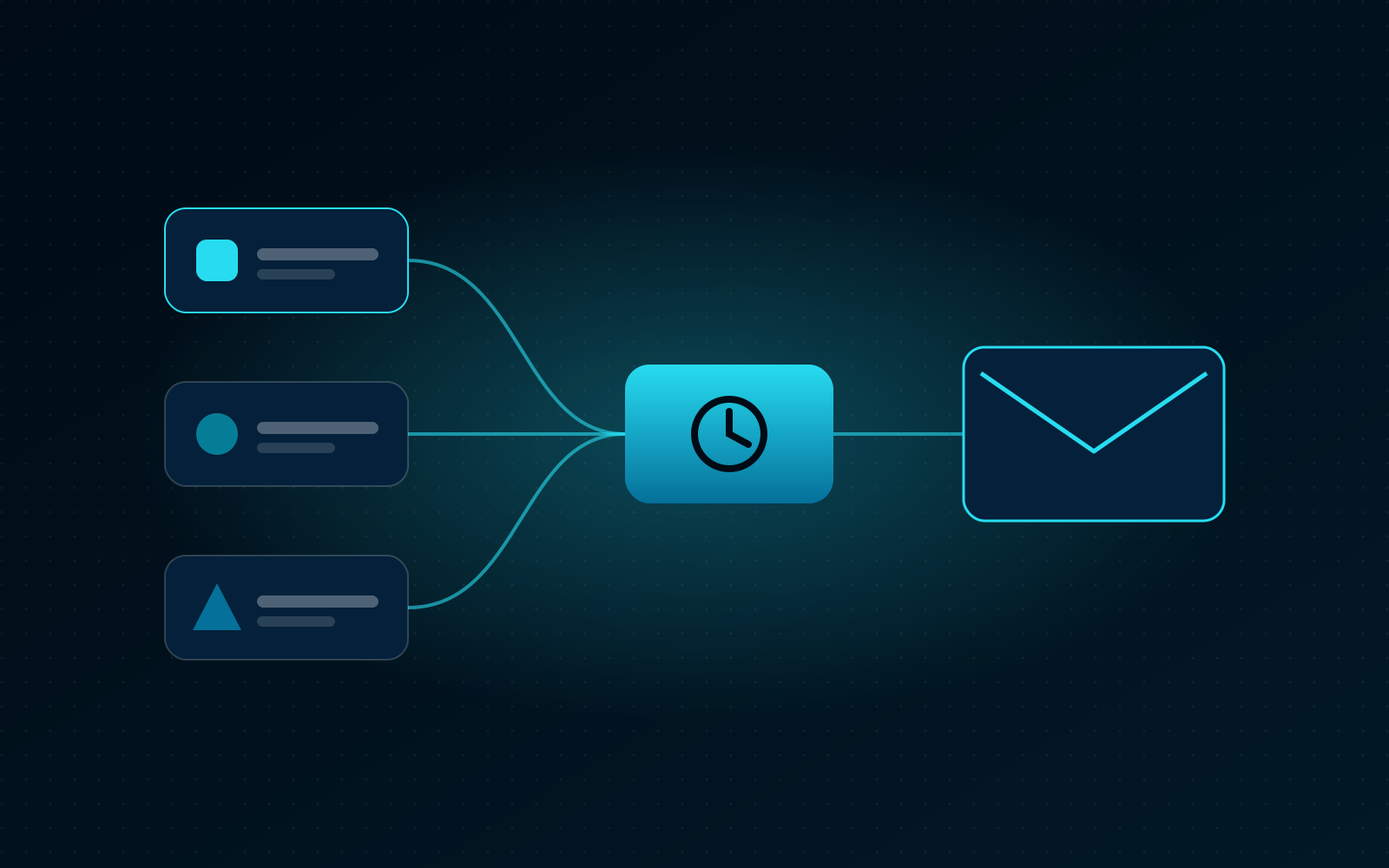
An automation is a graph with exactly one trigger, optional logic and actions. The trigger says when to start, the logic (filter, wait, set fields) decides what next, and the actions do something: e-mail the team, send an SMS or a webhook, create a task or assign an owner. Every run has a step-by-step history with its result and reason, and a failed step can be retried from that history.
You build the graph in a visual editor and can test it with "Run test" before switching it on. An automation can have up to 50 nodes and cannot loop. Steps run only when the server has automation sending switched on; without it they wait, and the panel says so.
The three shop triggers use the orders stored in the panel, described in the article on orders and buyers.
When does "Paid order" start?
The "Paid order" trigger starts once for every order that became bought (paid, or carrying a status counted as paid) and is not cancelled. The order must be placed in the last 24 hours and after the automation was switched on, so a history import never starts it. You can choose which orders count.
The trigger's settings:
- Order: every paid one, the customer's first order, or the customer's next order.
- Value from: a minimum amount in the order's currency; 0 means any value.
Later steps can use the order and customer data, for example {{order.number}}, {{order.total}}, {{order.currency}}, {{order.items}} (number of items), {{order.count}} (which order of the customer this is), {{order.first}} and {{order.city}}, plus {{contact.*}} with the person's details.
The ready "E-mail about a big order" template e-mails the team when a paid order is at least 500 in the order's currency. You change the threshold in one field. Other ideas: a task for the owner on a customer's first order, or a webhook to your warehouse system for orders from a given city.
When does "Customer stopped buying" start?
The "Customer stopped buying" trigger starts once per person and their last purchase, at the moment 30, 60, 90, 180 or 365 days have passed since that purchase. It is checked every hour. A new purchase starts the count again, so the same person can start the automation again after another period without buying.
An important detail: the trigger catches only crossings since the automation was switched on, at most a week back. If you switch on a "90 days" automation today, it will not start for customers who have not bought for a year. Find those people in the "Lapsed" segment or with the "Bought, but not for" filter on the Contacts list, as described in the article on customer segments.
The available data is {{contact.*}} plus {{buyer.days}}, {{buyer.orders}}, {{buyer.spent}} and {{buyer.currency}}. The ready "Task: win back a lapsed customer" template gives the owner a task when a customer has not bought for 90 days. It is a good start for shops where someone actually calls or writes to regular customers.
What does "Shop alert" watch?
"Shop alert" checks the last 24 hours every hour and starts when something stopped working. It watches one of three things: purchases refused by Meta or another platform (GA4, TikTok, Pinterest, Klaviyo, Google Ads, Microsoft Ads), paid orders without any purchase accepted by Basketly, or a feed whose last download failed. The same alert arrives at most once a day.
| Kind of alert | When it starts |
|---|---|
| Purchases did not reach platforms | When it startsIn the last day a purchase sent to Meta or another platform failed |
| Orders without purchases in Basketly | When it startsThe shop has at least 3 paid orders in a day and no purchase reached Basketly |
| A feed did not download | When it startsA feed's last download failed (each feed separately) |
The alert's data is {{alert.title}}, {{alert.text}}, {{alert.count}} and {{alert.link}}; the link leads to the page where you can check the cause. The ready "Alert: purchases do not arrive" template e-mails the team when Meta or another platform refuses purchases.
An alert is a signal, not a diagnosis. The details, meaning which purchases, to which destination and with what error, are in the purchase balance on the Conversions page, described in the article are purchases reaching Meta.
How does "E-mail the team" work?
The "E-mail the team" action sends a message to the organisation's owner and admins, or to up to 5 typed addresses. It never writes to the shop's customers. The subject can have up to 200 characters and the text up to 5,000, and both accept variables from the trigger, such as the order number or the alert's description.
E-mails go through a durable queue: each recipient gets a separate message, and retrying the step does not send the same message again. The step summary in the run history gives the number of recipients. Typed addresses do not have to belong to members of the organisation, so you can notify, say, the warehouse or the accountant.
How do you combine a trigger with logic? A step-by-step example
A shop trigger is just the beginning. Between it and the action you can add a filter, a wait or set fields, so one automation handles a more specific case. Below is an example for a shop that wants to thank new customers whose first order is large.
- Trigger: "Paid order", order: the customer's first order, value from an amount you consider large.
- Wait: 7 days, so the parcel has time to arrive.
- Filter: for example
{{order.city}}equals a city name, if the action concerns customers from one region only. - Create task: "Call {{contact.name}} to say thank you" for the person's owner. Buyers get no owner automatically, so without one the task goes to the next person in the round-robin pool.
Run such a graph with "Run test" first. In a test the task and owner steps change nothing, but SMS and webhook steps really send when sending is on, so test them on your own number and address.
How it looks in Basketly
Automations are in the menu under Setup → Automations. People with edit access to automations (by default the owner and admin) can build, test and switch them on; a role with "Handle runs" can also switch them off and retry steps. The simplest start is one of the three shop templates.
A good first set for a shop:
- Alert: purchases do not arrive, so a sending failure does not last for weeks without the team knowing.
- The "A feed did not download" alert, if you use product feeds.
- E-mail about a big order with a threshold that suits your shop.
- Task: win back a lapsed customer, if someone on the team contacts regular customers.
If an automation contains an SMS or a webhook, you must confirm the legal basis for passing personal data before switching it on. SMS messages go out only between 08:00 and 20:00 in the organisation's time zone, at most 500 a day. More about the feature on the Automations page.
Limits
- No abandoned carts. The shop script counts carts without any personal data, so there is no way to write to someone who abandoned a cart.
- E-mail to the team only. An automation can reach the shop's customers by SMS or by a webhook to your own system, but not by e-mail.
- Fresh orders only. "Paid order" does not start for orders older than 24 hours or placed before switching on.
- Long-lapsed customers are not covered by "Customer stopped buying"; use a segment for them.
- An alert does not fix anything. It says something is wrong; the cause has to be checked on the page its link leads to.
- Sending depends on the server. Without automation sending switched on, steps wait.
Next step
Create an automation from the "Alert: purchases do not arrive" template, keep the owner and admins as recipients and switch it on. Five minutes of work that can save weeks of sales invisible to your campaigns. Plans and limits are on the pricing page.
About the author
Aleksander
Founder of Basketly.io, BooksyAudit.pl and SMSPortal.app
Founded Basketly.io, BooksyAudit.pl and SMSPortal.app. In the knowledge base he explains how to send shop purchases to Meta, how to keep a product catalogue in shape and how to measure what a purchase from ads costs.
All articles by the authorFrequently asked questions
Will importing the order history start an automation?
No. "Paid order" starts only for an order placed in the last 24 hours and after the automation was switched on. Orders from the 24-month history never start it, so nobody gets an e-mail about an order from a year ago.
Does "Customer stopped buying" cover customers who lapsed long ago?
No. The trigger starts at the moment a customer's last purchase passes the chosen number of days, and it catches such crossings from the moment the automation was switched on, at most a week back. Customers who lapsed long ago are in the "Lapsed" segment on the Contacts page.
Who can the "E-mail the team" action write to?
The organisation's owner and admins, or up to 5 typed addresses. Never the shop's customers. Each recipient gets a separate message, and retrying the step does not send the e-mail a second time.
How often does the shop alert arrive?
The alert is checked every hour against the last 24 hours. The same alert arrives at most once a day, and the feed alert separately for each feed. That way one failure does not flood the inbox.
Why are the automation's steps waiting with nothing happening?
Steps run only when the server has automation sending switched on. Without it runs wait, and the panel says so. It is a server setting, separate from sending to Meta.