
Purchase balance: how to check that shop orders really reach Meta and other platforms
How to read the day-by-day purchase balance: shop orders, purchases Basketly accepted and sends to Meta and other platforms. What each gap means and what to check.
On this page
- What does the purchase balance show?
- How do you read the gap between orders and purchases accepted by Basketly?
- Why didn't a purchase accepted by Basketly reach a platform?
- What does "accepted" mean, and what doesn't it mean?
- How it looks in Basketly
- How often should you look at the balance?
- Limits
- Next step
- Sources
The purchase balance answers a question shop owners usually ask too late: did every paid order reach the places it should? Meta's Events Manager shows what arrived there, but it does not know how many orders the shop had. The balance puts those numbers side by side, day by day, and shows where a gap appears.
What does the purchase balance show?
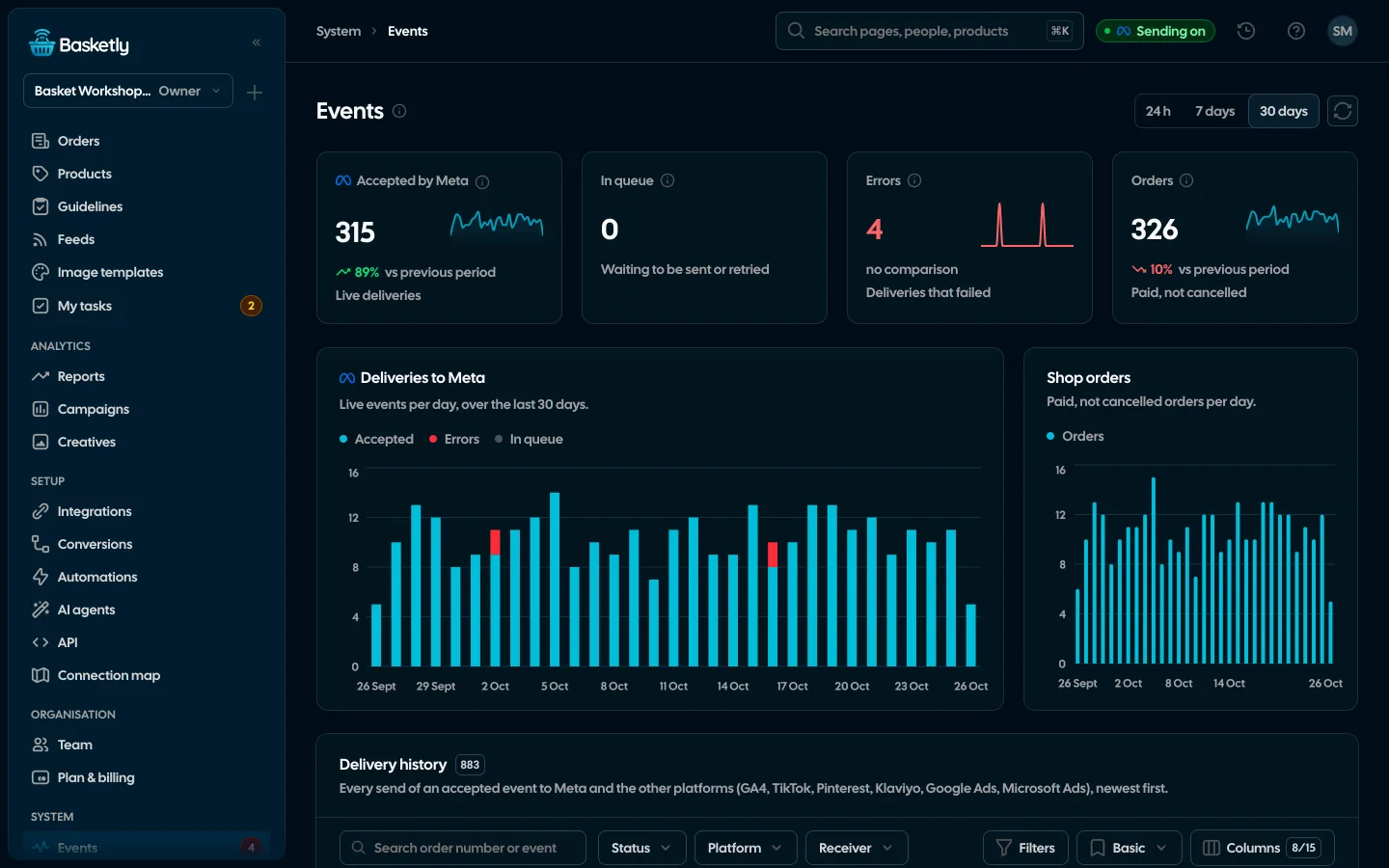
The purchase balance is a table of three levels: paid shop orders, purchases accepted by Basketly and sends to each platform. Every platform (each Meta receiver and each connection to GA4, TikTok, Pinterest, Klaviyo, Google Ads and Microsoft Ads) has its count of accepted sends, errors and waiting sends. The period is 7, 14 or 30 days, and days follow the organisation's time zone.
The balance lives on the Conversions page (Setup menu). At the top are tiles:
| Tile | What it counts | Where the number comes from |
|---|---|---|
| Shop orders | What it countspaid orders without cancelled ones, with revenue in the main currency | Where the number comes fromthe shop's stored orders, by the day they were placed |
| Accepted by Basketly | What it countspurchase events accepted from the shop (and their share of orders) | Where the number comes frompurchase events, by purchase time |
| One tile per platform | What it countsaccepted (share of purchases), errors, waiting | Where the number comes fromsends to that Meta receiver or connection to another platform |
Under the tiles is the Day by day table: every cell holds three numbers, accepted / errors / waiting, for each platform. At the bottom, Most common error reasons lists the five most frequent messages from failed or retried sends, with how often each occurred.
The main currency is the one most orders in the period use. Orders in another currency count towards the number of orders but not the revenue on the tile.
How do you read the gap between orders and purchases accepted by Basketly?
The gap between paid orders and purchases accepted by Basketly is orders the shop did not pass on as a purchase. A small gap can be normal, because orders count by the day they were placed and purchases by the purchase time. A large, steady gap means the shop connection does not work the way you think.
Typical causes:
- Ordered in the evening, paid the next day. The order counts on the day it was placed, the purchase on the day it was paid. At the edge of a period the two can fall into different weeks.
- Orders from before the shop was connected. 24 months of order history are read into the panel, but none of it goes to Meta as a purchase. That is why the first days after connecting often show more orders than purchases.
- A payment status the connection does not know. In the Shoper API connection you list the statuses that count as a purchase besides the "paid" flag (for example cash on delivery). A cash-on-delivery order without that setting never becomes a purchase.
- A shop connection error. An expired API user password or revoked rights stop the reads. The connection state shows on the Shoper source in Integrations and on the connection map.
How the Shoper connection works and what a server-side purchase is, we explain in the article on server-side purchase events from your shop.
Why didn't a purchase accepted by Basketly reach a platform?
A purchase accepted by Basketly reaches a platform only when a flow leads there (Meta) or the "Send purchases" switch is on (GA4, TikTok, Pinterest, Klaviyo, Google Ads, Microsoft Ads), and the server has sending switched on. Klaviyo gets only purchases with an email address, and Google Ads and Microsoft Ads only purchases they can attribute to their ads (with a click id, in Google Ads also with an e-mail under enhanced conversions), so those tiles show fewer accepted sends than purchases, and that is not an error. If a platform's tile shows fewer accepted sends than purchases, the errors and waiting columns tell you why.
Split it into three cases:
- The platform is missing from the balance. The balance shows a platform only once the period has at least one send to it. If a Meta receiver is missing, there is no
purchase → Purchaseflow from the shop source to it, or the flow is paused. The other platforms appear once sending is switched on in the Other platforms section of the same page. - Many waiting sends. Sends wait when the server has sending switched off (the top bar then says "Sending off"), when a platform asked for a pause (rate limit, outage) and the send waits for a retry, or when the organisation is suspended. Waiting sends are not lost purchases, but the clock is running: Meta refuses events older than 7 days.
- Many errors. An error is a send the platform refused and that we will not retry by ourselves: a refused token, an event older than the platform's limit, a missing currency. The message is on the error reasons list.
One thing that confuses people: a receiver in test mode does not count in the balance. The balance shows only live sends of the Purchase event. If you leave a receiver in test mode after setup, purchases go only to Events Manager's test tool, and the receiver's tile stays empty.
What does "accepted" mean, and what doesn't it mean?
"Accepted" means the platform answered the send correctly. For Meta it also means the answer counted every event (events_received). It is a confirmation of receipt. It does not prove that Meta matched the purchase to a person, that a campaign optimises for purchases, or that the purchase was attributed to a particular ad.
That is why the balance does not replace two other places:
- Meta's Events Manager shows match quality and any deduplication warnings. If the shop also runs the Pixel, both events must carry the same id, otherwise Meta counts the purchase twice; details in the article on Pixel and CAPI event deduplication.
- Ads Manager shows what an ad set optimises for and how many purchases it attributed.
GA4 has one more caveat: Google states that the Measurement Protocol returns a 2xx status code as soon as it receives the request, even if the data is wrong. "Accepted" for GA4 is therefore an even weaker confirmation than for Meta; look for the purchases in GA4 reports too. More in the article on sending purchases to GA4 and TikTok.
How it looks in Basketly
In Basketly you open the balance from Setup → Conversions. You pick the period above the tiles, and every number is counted from stored records: orders, events and sends. Nothing is estimated. An empty page saying "No purchases in this period" means the shop is not passing on paid orders yet.
What to click when something does not match:
| Symptom in the balance | Where to look | What to do |
|---|---|---|
| Far more orders than purchases | Where to lookIntegrations → Shoper source → Shoper API connection | What to docheck the connection state, the webhook and the statuses counted as a purchase |
| No Meta receiver in the balance | Where to lookConversions, list of flows | What to docreate or resume a purchase → Purchase flow to the receiver |
| Receiver tile empty despite a flow | Where to lookIntegrations → Meta datasets | What to doswitch off test mode if setup is finished |
| Many waiting sends everywhere | Where to looktop bar: "Sending off" | What to dothe server administrator switches sending on |
| Errors for Meta | Where to lookSystem → Events, Errors tab | What to dofix the cause and retry the send |
| Errors for another platform | Where to lookIntegrations → the integration → Check again | What to dosave a new key or token, or connect Google Ads or Microsoft Ads again |
You can retry a failed Meta send by hand when its data is still stored and its event time is within 7 days. Sends to the other platforms have their own queue that retries network errors, rate limits and outages by itself.
Two tools do part of this work for you. Self-check (System menu) looks at receivers in its Sending to Meta area: sending switched off, test mode, refused and stuck sends. And an automation with the "Shop alert" trigger looks at the last 24 hours every hour and can e-mail the team when Meta or another platform refuses purchases, or when there are at least 3 paid orders without any accepted purchase. The same alert goes out at most once a day. The ready template is called "Alert: purchases do not arrive"; more in the article on shop automations.
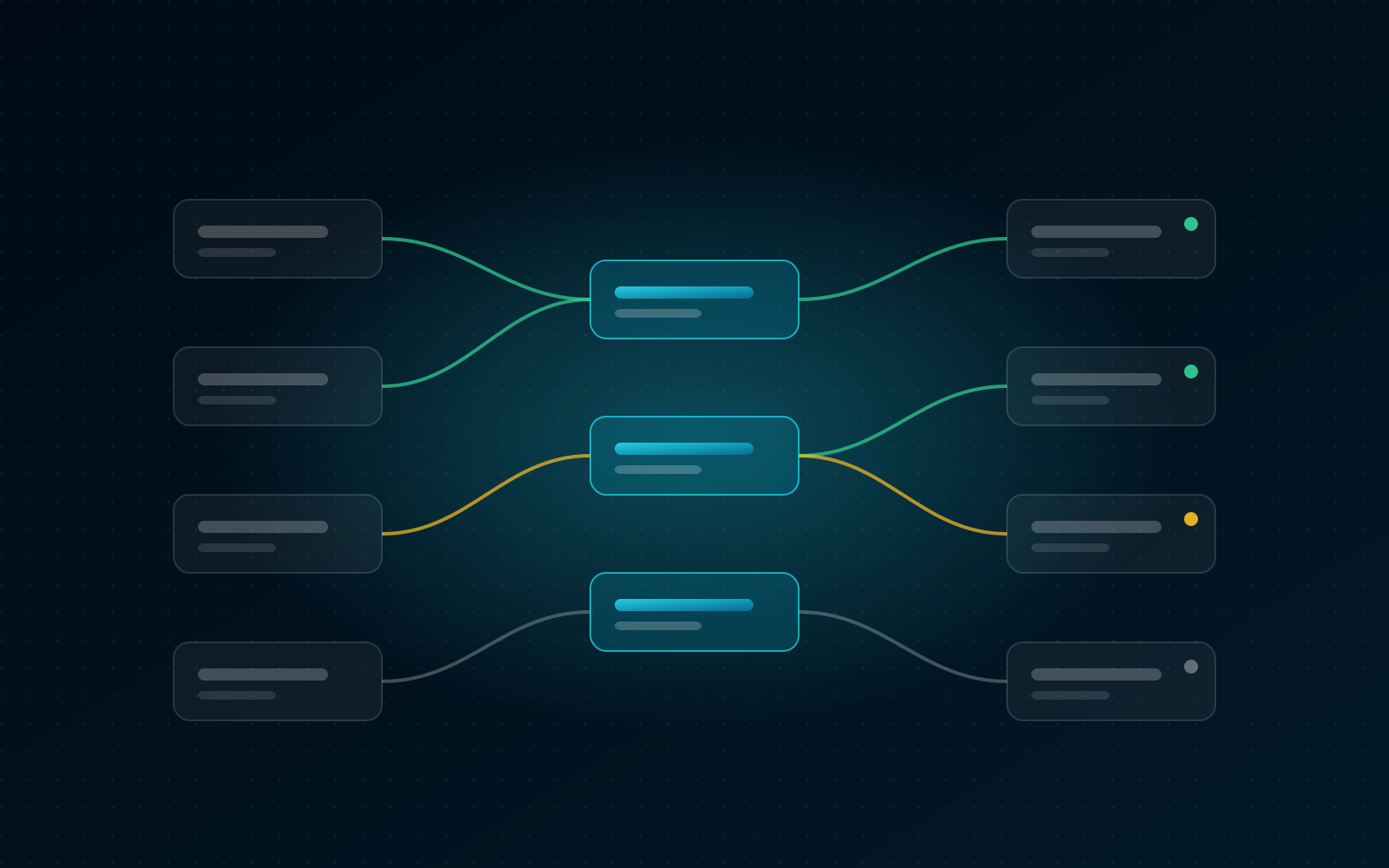
If you would rather see the whole setup at once, the connection map shows the same failed sends of the last 24 hours on the line to each receiver.
How often should you look at the balance?
A few minutes twice a week is enough, and daily in weeks of heavy sales. The reason is simple: platform limits. Meta accepts events up to 7 days old, GA4 through the Measurement Protocol up to 3 days. A purchase lost longer ago than the limit can no longer be recovered in the platform.
A simple routine:
- Period 7 days. Is the share of orders accepted by Basketly similar to last week?
- Each platform tile: are errors and waiting sends at zero or close to it?
- The day-by-day table: does any day stand out? If so, something changed that day (a new API password, a new receiver, sending switched off).
- The error reasons list: is there a new message?
After a configuration change (a new receiver, a new token), come back to the balance after a few hours, not after a week.
Limits
- Accepted ≠ optimisation or attribution. The balance says what a platform received. Matching, campaign goals and attribution are decided by the platform.
- Order day and purchase day differ. At the edges of a period the numbers need not match one for one.
- Live sends only. Test mode is left out.
- Purchases only. The balance does not count other shop events.
- The shop is Shoper today (or your own server sending orders through the shop source). Other shop platforms are planned.
- GA4 only confirms that it received the request, so check purchases in GA4 reports too. Each platform gets its own tile in the balance once sending to it is on.
- Klaviyo, Google Ads and Microsoft Ads do not get every purchase. Klaviyo only purchases with an email address, Google Ads and Microsoft Ads only purchases from clicks on their own ads.
- Platform limits: Meta 7 days, GA4 3 days. We do not send older purchases.
Next step
Open Conversions, set 7 days and compare the orders tile with each platform's tile. If the gap is more than a few orders, start with the shop connection state, then switch on a "Shop alert" automation. How the whole conversions part works is described on the Conversions page, and if you are only now connecting the shop, start with shop integrations: where to start.
Sources
- Meta for Developers: Server Event Parameters (7-day limit for
event_time,action_source,event_id) - Meta for Developers: Using the API (sending a request and the response with the number of events received)
- Google for Developers: Measurement Protocol reference (the 72-hour limit on event age)
- Meta for Developers: Deduplicate Pixel and Server Events (
event_id+event_name, 48-hour window, both channels recommended)
About the author
Aleksander
Founder of Basketly.io, BooksyAudit.pl and SMSPortal.app
Founded Basketly.io, BooksyAudit.pl and SMSPortal.app. In the knowledge base he explains how to send shop purchases to Meta, how to keep a product catalogue in shape and how to measure what a purchase from ads costs.
All articles by the authorFrequently asked questions
Why are there more shop orders than purchases Basketly accepted?
Usually because some orders were paid before the shop was connected, an order became paid on a different day than it was placed, or the purchase falls into the neighbouring period. Orders count by the day they were placed, purchases by the purchase time. A large, steady gap means a problem with the shop connection.
Does “Accepted” for Meta mean the campaign optimises for purchases?
No. Accepted means Meta answered correctly and counted the event. It says nothing about match quality, whether an ad set optimises for purchases, or which ad the purchase is attributed to. You check those in Events Manager and Ads Manager.
Why don't test sends show up in the balance?
The balance counts only live sends of the Purchase event. A receiver in test mode sends events with a test code that only appear in Events Manager's test tool, so they are not real purchases for your campaigns.
How far back can I fix lost purchases?
Meta accepts events up to 7 days old, and GA4 through the Measurement Protocol up to 3 days old. Basketly will not send older purchases, so look at the balance every few days, not once a month.
Can I get an alert before I open the balance myself?
Yes. An automation with the “Shop alert” trigger checks the last 24 hours every hour and can e-mail the team when a platform refuses purchases or when there are paid orders (3 or more) without any purchase Basketly accepted.