
The shop connection map: your whole setup on one canvas and a 5-minute weekly check
How to read the connection map: where data comes from, what Basketly does with it, where it goes, what the colours mean and how to spot breakage in 5 minutes a week.
On this page
The shop connection map is your whole setup on one screen: the shop, feeds, ad accounts, integrations, orders, products, conversions, segments, automations and the places all of it goes to. Instead of going through eight pages, you see at once what works, what needs attention and what broke. Below: how to read it and how to turn it into a five-minute weekly check.
What does the connection map show?
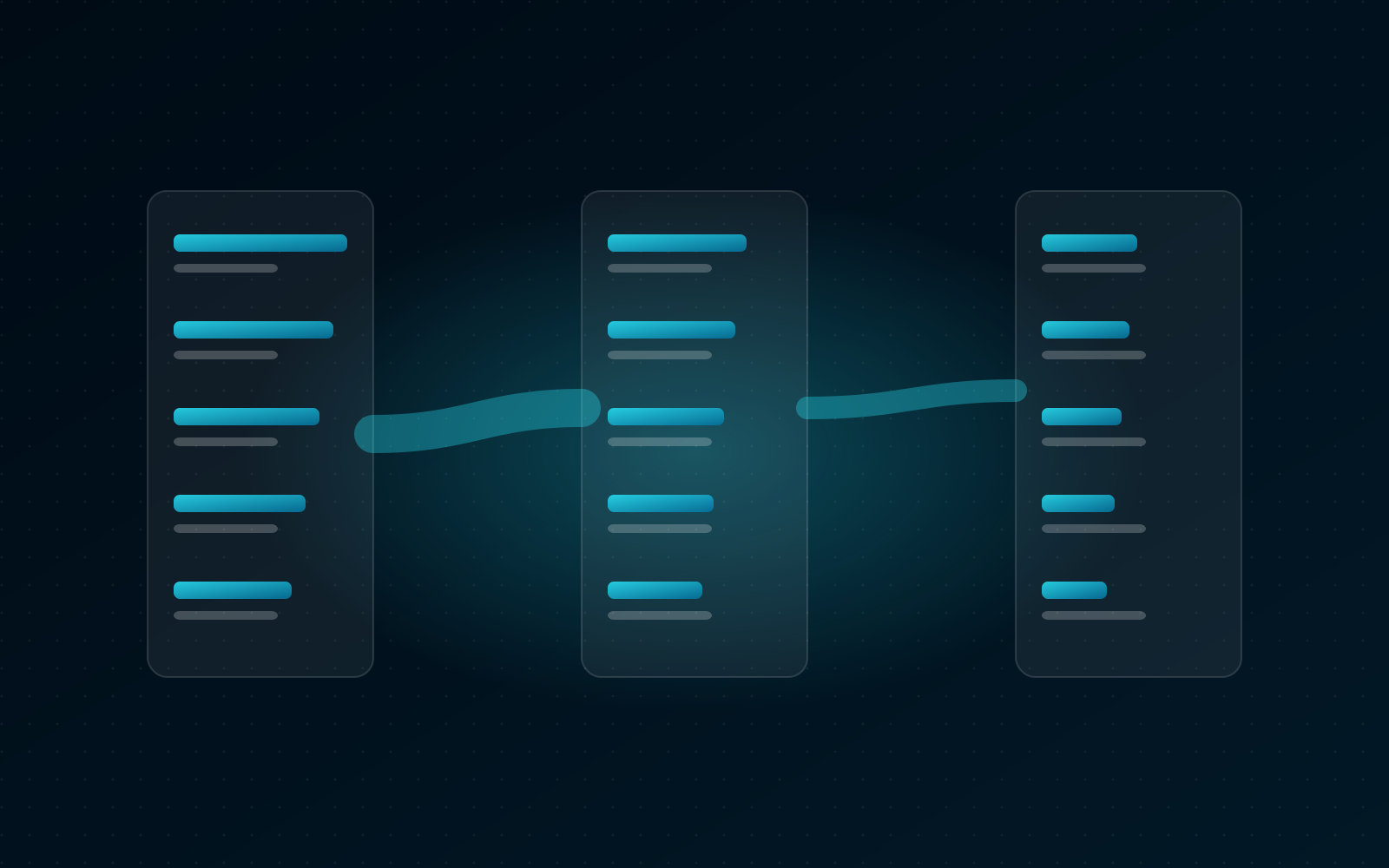
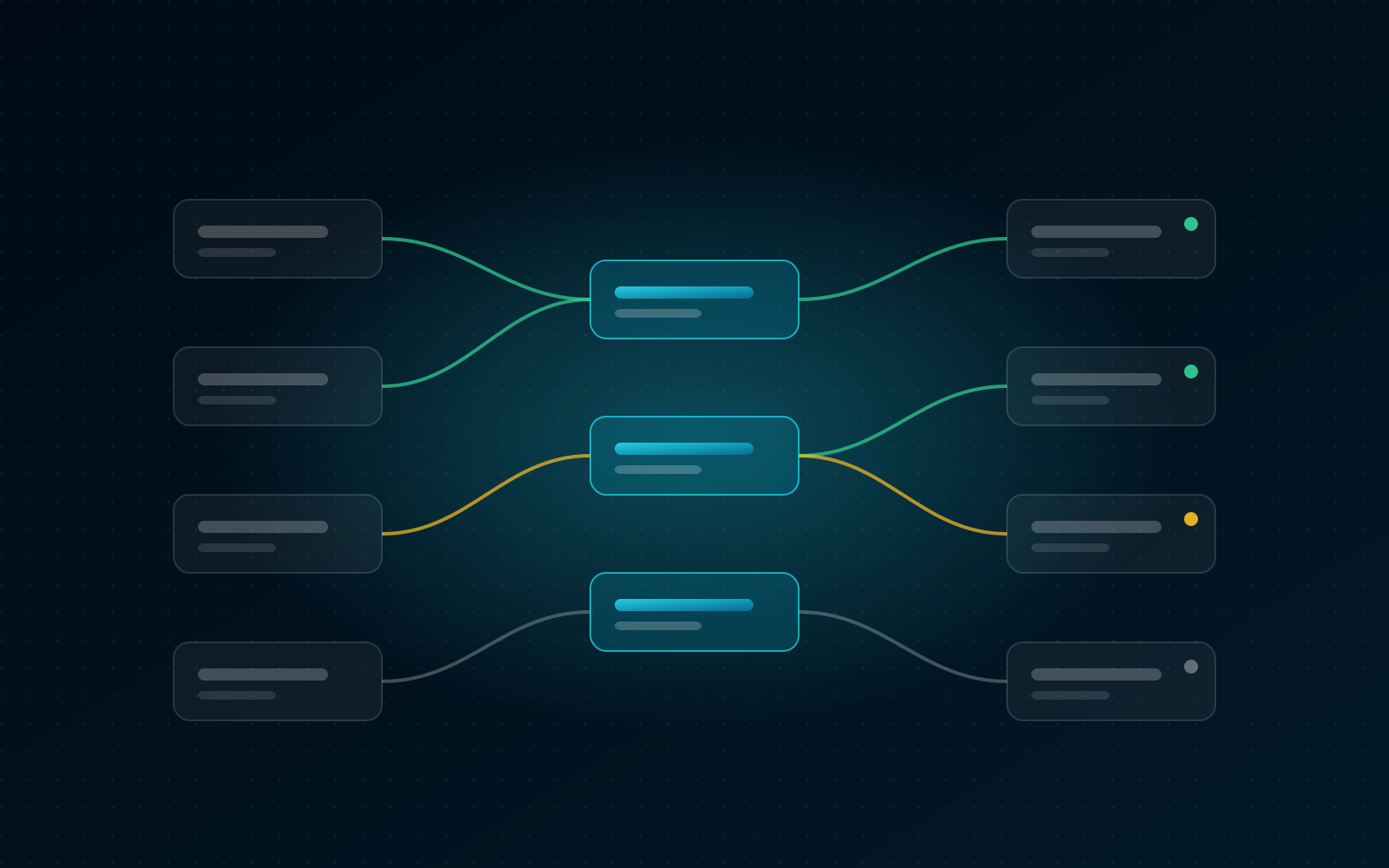
The connection map is a canvas in three columns: on the left where data comes from, in the middle what Basketly does with it, on the right where it goes. Lines join the elements, and every element and line has a status colour and a short reason. The map is read-only and changes nothing.
| Column | What it holds |
|---|---|
| Where data comes from | What it holdsshop sources (Shoper with the shop script), Google Sheets, feeds downloaded from an address or file, Meta and Google logins, Pinterest and Klaviyo |
| Basketly | What it holdsorders and customers, products and diagnosis, conversions, customer segments, switched-on automations with their trigger, image templates, feeds made from the shop's products, feeds made from feeds and feed flows |
| Where it goes | What it holdsMeta receivers through flows (with their status → event mapping), purchase sending to GA4, TikTok, Pinterest and Klaviyo, Meta audiences from segments, served feed formats (Google/Meta XML, Ceneo, CSV), API and webhooks, connected AI agents |
Every element is a card: the platform's logo, its kind (such as "Meta receiver"), its name, its status and figures from existing records, one per line, such as "Orders 30 days", "Products" and "With errors", "Events 7 days", "Accepted 24 h" and "Failed 24 h", "People in the audience". The account a source or Meta receiver signs in with is the "Account" line on its card, not a separate line across the map.
What do the colours on the map mean?
The colours have four meanings: green works, amber needs attention, red is an error, grey is off. The reason always comes from records Basketly already has, never from guesswork. So a red element tells you not just "something is wrong" but what exactly: the last read error, an expired login or failed sends.
Examples of reasons you will see:
- Red: a source paused because its account was disconnected; the last feed download failed; the connection to an account expired; failed purchase sends in the last 24 hours and not a single accepted one; an audience sync error.
- Amber: some sends of the last day failed; a receiver in test mode ("events go only to tests in Events Manager"); products with errors the platforms will refuse; failed automation steps in the last 24 hours; no paid orders in the last 30 days; a webhook whose last delivery failed.
- Grey: a paused source or receiver; no shop connected; all flows to a receiver paused; no events in the last 7 days.
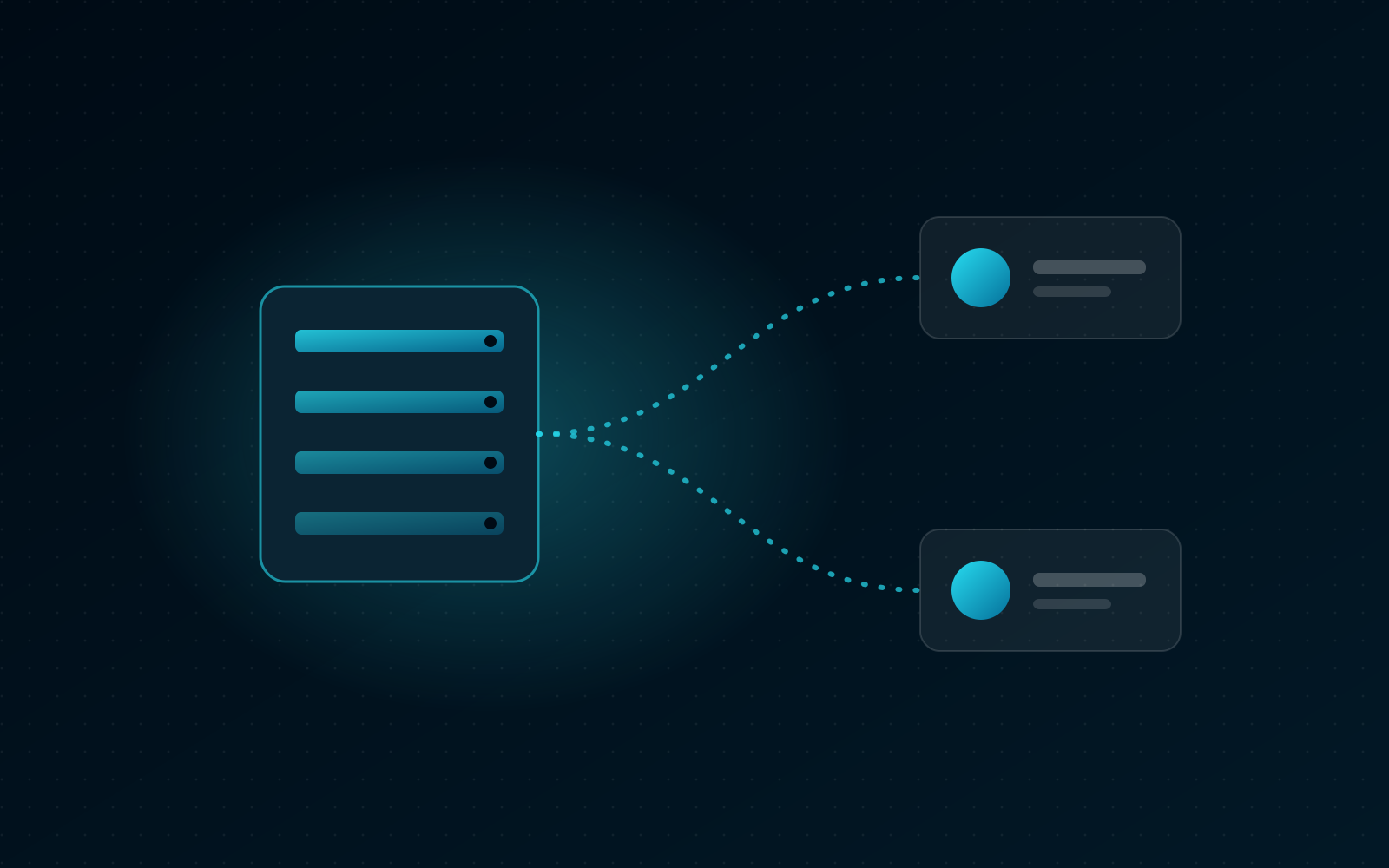
Lines show where data flows. Working ones are thin and grey, switched-off ones dashed, and a line only gets a colour when something is wrong: the line to a Meta receiver, or to GA4, TikTok, Pinterest or Klaviyo, turns red or amber when sends of the last day failed. It is the same signal the purchase balance shows in detail, day by day.
How do you do a 5-minute check once a week?
A check on the map takes about five minutes and has one goal: find red and amber elements before they hurt sales. Do it at a fixed time, for example on Monday morning together with last week's sales report. Regularity matters, because Meta accepts purchases only up to 7 days old.
The routine:
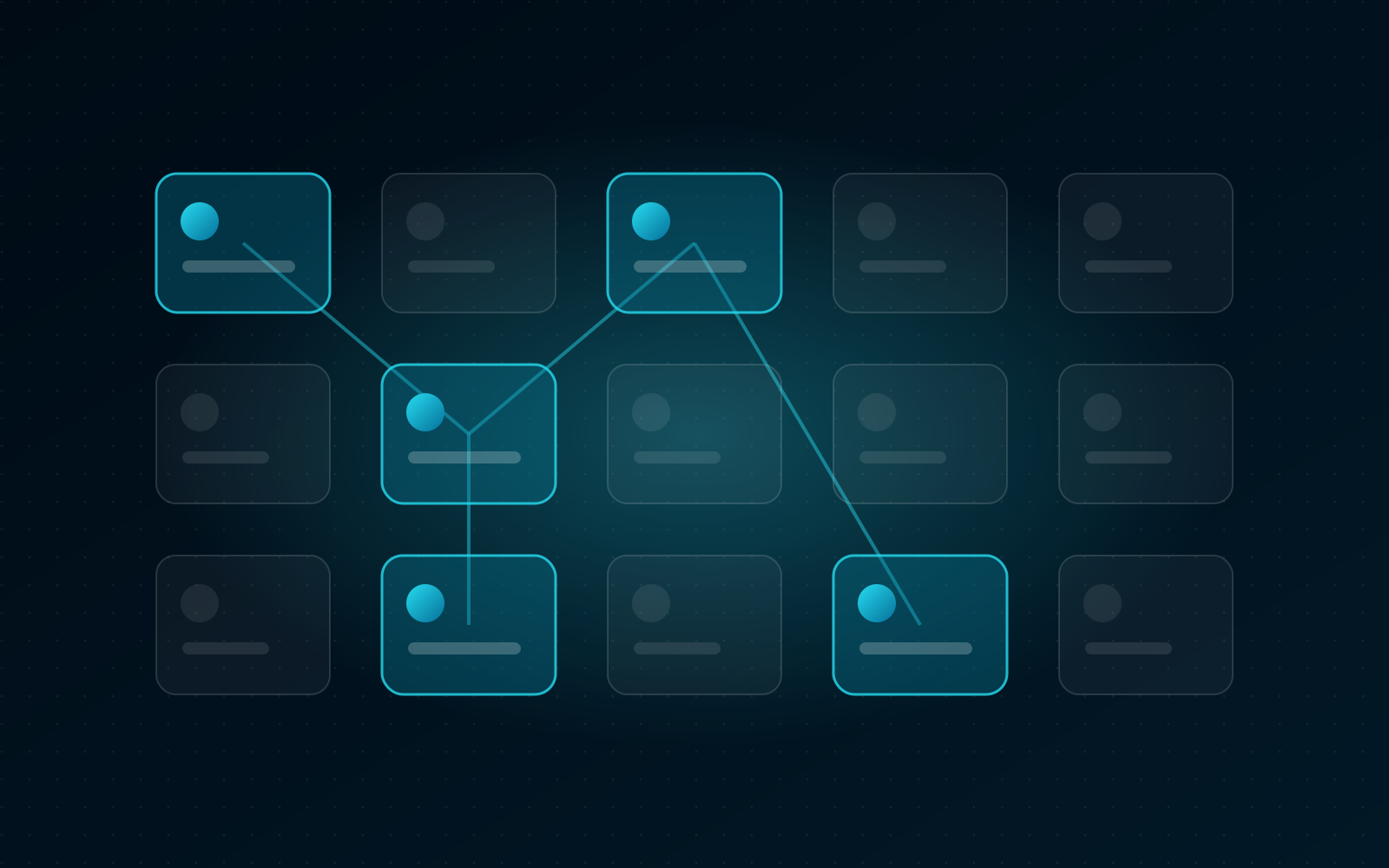
- The filter above the canvas. The buttons "Working", "Attention", "Error" and "Off" show how many elements are in each state; a pressed one keeps only those elements bright and fades the rest. If the map's title says "Everything works", you are done.
- Red elements one by one. Click the element. Its path lights up (where it gets data from and where it passes it on), and the panel beside the map shows the reason, the figures, details (such as the receiver's flows), where the element gets data from and where it passes it on, and the link "Open the page that manages it".
- Amber elements. Decide whether it is deliberate (a receiver in test mode during setup, say) or needs fixing.
- Grey elements. Check that you switched them off on purpose. A source paused a month ago is a common reason why purchases "stopped flowing".
- Refresh after the fix and see whether the colour changed.
If you want some of these signals to come to you, set up a "Shop alert" automation, described in the article on shop automations. The map then becomes the tool for quickly understanding where the problem is.
How it looks in Basketly
In Basketly the map is under Setup → Connection map. You can zoom with the buttons in the corner (or the wheel with Ctrl or ⌘ held), pan and fit the canvas to the screen, but you cannot drag or edit anything on it: the layout is computed.
A few details:
- The side panel that opens on click has the sections "Figures", "Details", "Comes from", "Goes to" and a link to the page that manages the element, such as Feeds, Conversions or Integrations.
- Permissions: the map leaves out parts your role cannot see (Clients, Conversions, Automations, API, AI agents). In the menu the map shows for people with edit rights on Connections, by default the owner and administrator.
- No secrets: the map returns no tokens, keys or served feed address with its secret token.
- Phones: below 768 pixels wide the canvas turns into a list of the same cards grouped by column; under each card, "leads to" links to the cards its data flows to.
- An empty map ("Nothing connected yet") leads to Integrations. Where to start there is covered in shop integrations: where to start.
How is the map different from Self-check and the purchase balance?
The map, Self-check and the purchase balance answer three different questions. The map: what the whole setup looks like and where the problem is right now. Self-check: a list of specific faults with instructions, run on demand or after a configuration change. The balance: whether purchases reach each platform, day by day.
| Tool | Question it answers | When it updates |
|---|---|---|
| Connection map | Question it answerswhat is connected to what and what has a problem | When it updateswhen opened and on Refresh |
| Self-check | Question it answerswhat exactly is wrong and how to fix it | When it updateson "Check now" or 2 minutes after a configuration change |
| Purchase balance | Question it answershow many purchases reached each platform, day by day | When it updateswhen opened, for the chosen period |
In practice you start with the map, because it shows the whole, and look for details in the balance or in Self-check. If you also send purchases to GA4, TikTok, Pinterest or Klaviyo, their lines on the map behave like the lines to Meta. Google Ads and Microsoft Ads appear on the map as connected accounts with the chosen conversion and 7-day spend, and you check their purchase sends in the balance; what those platforms receive is in the article on purchases to GA4 and TikTok from the server.
Limits
- The map changes nothing. It is a view; fixes happen on the pages that manage the elements.
- Green does not mean "the campaign optimises". A green line to a Meta receiver only means recent sends did not fail. Matching, campaign goals and attribution are decided by Meta.
- The time windows are short: sends from 24 hours, events from 7 days, orders from 30 days. A problem from a week ago may no longer glow red even though purchases were lost.
- The map shows what Basketly knows. Settings that exist only in Meta or in the shop are invisible to it.
- Different roles see different maps, because parts without access are left out.
- Pinterest and Klaviyo sit on the right when purchases go to them; Klaviyo lists from segments get their own elements.
Next step
Open Setup → Connection map and do your first check: counters, red, amber, grey. Put a fixed weekly slot in your calendar. More about what connects to the shop and how is on the Integrations page, and about the segments the map shows together with Meta audiences in the article on customer segments.
About the author
Aleksander
Founder of Basketly.io, BooksyAudit.pl and SMSPortal.app
Founded Basketly.io, BooksyAudit.pl and SMSPortal.app. In the knowledge base he explains how to send shop purchases to Meta, how to keep a product catalogue in shape and how to measure what a purchase from ads costs.
All articles by the authorFrequently asked questions
Can I change or drag anything on the map?
No. The map is read-only. The layout is computed, and every change is made on the page that manages the element. Clicking an element opens a panel with a link to that page.
How does the map know something is broken?
From records Basketly already has: a source's or feed's last error, failed purchase sends in the last 24 hours, paused sources and flows, a receiver in test mode, a disconnected login, products with errors, failed automation steps, a failed audience sync or webhook delivery.
Why are some parts missing from my map?
The map shows only what your role can see. Without access to Clients, Conversions, Automations, API or AI agents those parts are left out. Another person in the same organisation may therefore see more.
Does the map show tokens or the feed address?
No. The map returns no secret: no tokens, no keys and no served feed address, which contains a secret token. Those stay on the pages that manage them.